
This article explains how agent representation works in Apply. The process by which an applicant authorises (or declines) an agent who has started an application on their behalf. Understanding it will help your team interpret an applicant's representation status and handle applications correctly.
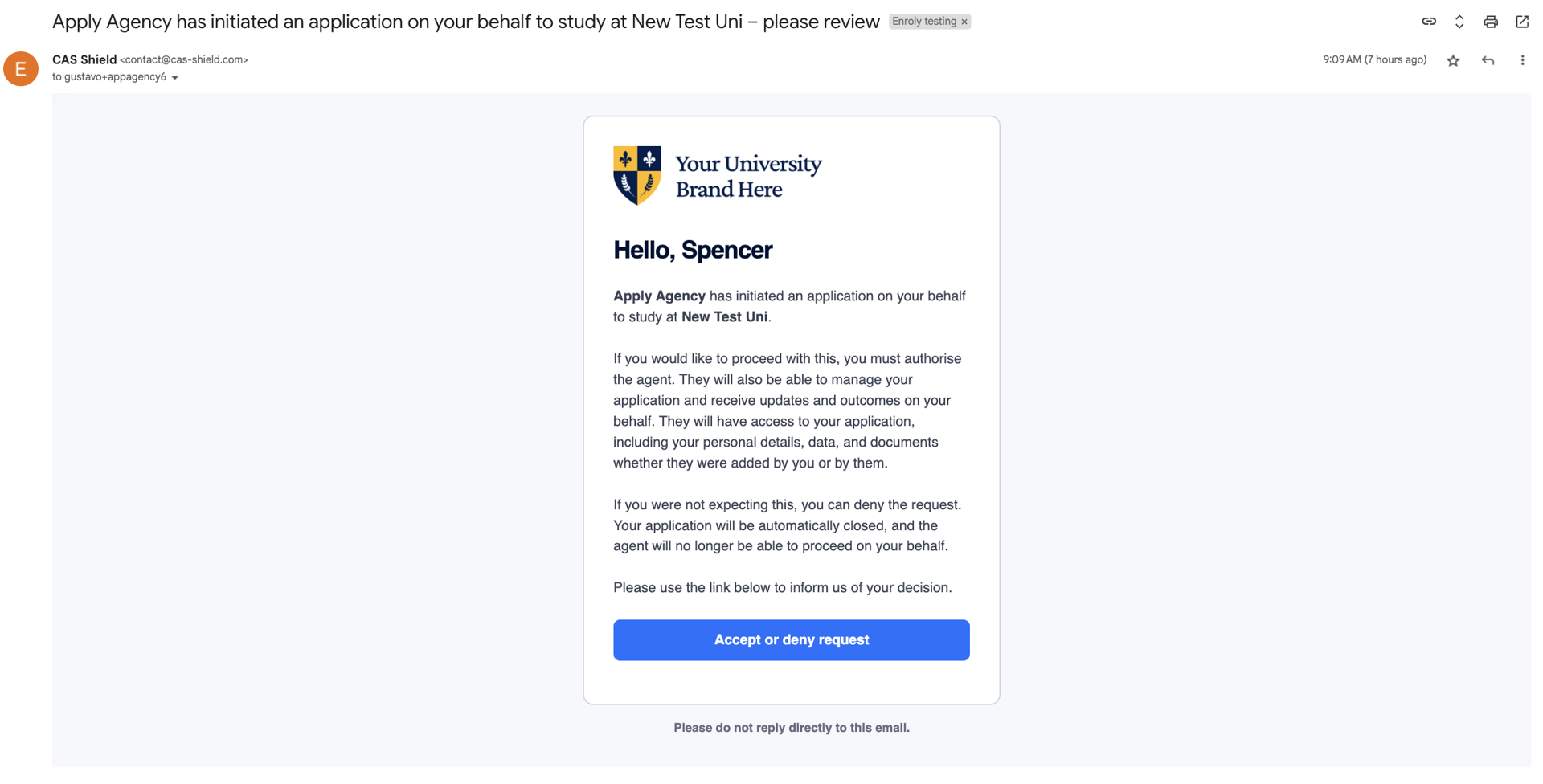
To keep the process transparent and leave applicants in control, Apply sends a representation confirmation email to every applicant created by an agent. This makes sure the applicant is aware of the application, understands the agent's role, and can authorise or deny the representation.
When and how the email is sent
- The email is triggered automatically when the agent completes the applicant-creation drawer.
- No manual step is required from the agent.
- It uses the same branding as all other Apply and CAS Shield communications, maintaining institutional trust.
The email
- Subject line: "[Agent name] has initiated an application on your behalf to study at [University] – please review."
- The email explains that an agent has started an application for them, and includes a button taking the applicant to a dedicated Authorise Agent page.
The Authorise Agent page
This page lets the applicant confirm or reject the agent's representation.
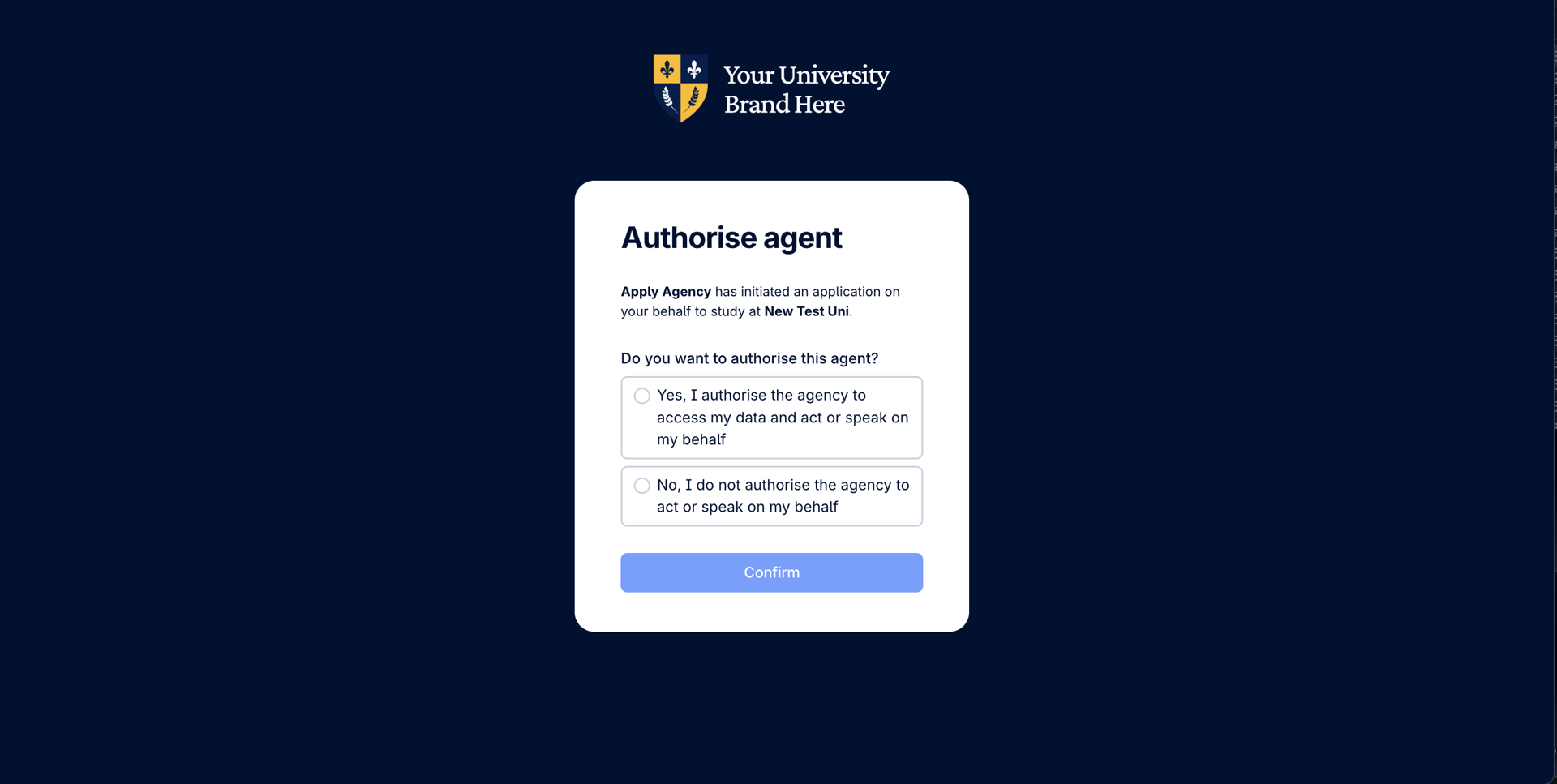
If the applicant authorises the agent ("Yes, I authorise the agency to access my data and act or speak on my behalf"):
- An optional marketing consent toggle appears.
- On confirming, the applicant is taken to a Create Password page and their account is activated.
- They're then taken to the Welcome page in Apply, and a registration confirmation email is sent.
This confirms the applicant is in control of their file and can either collaborate with the agent or continue independently.
If the applicant denies the agent ("No, I do not authorise..."):
- A warning message explains the implications of denying access.
- On confirming, the applicant is taken to a Thank You page, their account is removed, and their email is disassociated from the agent-led application (covered in detail below).
This flow reinforces applicant trust by giving them the final say on agent involvement, and supports compliance with data-protection regulations such as GDPR.
When agent representation is deniedWhen an applicant chooses not to authorise an agent who started an application for them, Apply automatically applies strict controls to protect the applicant's privacy, revoke the agent's access, and update the university's view. This section explains what happens and what your team will see.
How denial is triggered
The applicant denies representation via the Authorise Agent page (reached from the email sent when the agent created the application). Once they select "No, I do not authorise..." and confirm, their decision is logged and the denial process runs automatically — no action is needed from the agent or the university.
What the agent sees
- The agent immediately loses access to the applicant file.
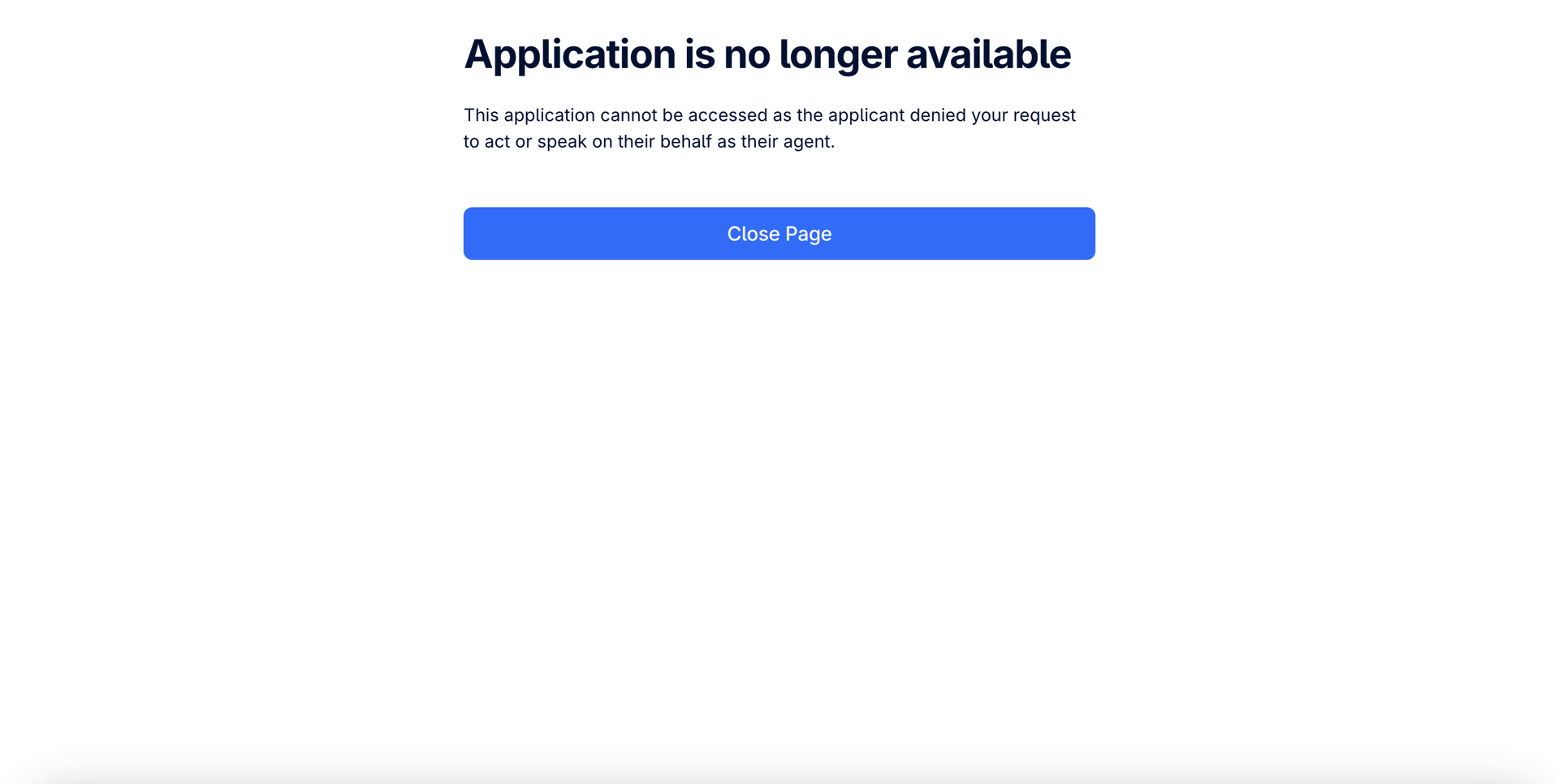
- The file moves to the Closed stage; in place of the file, the agent sees an "application no longer available" screen.
- All associated programmes are marked Withdrawn, with the reason "Closed by applicant."
What your team sees in the University view
- The applicant record moves to the Closed stage.
- All programmes show Withdrawn status with the reason "Closed by applicant."
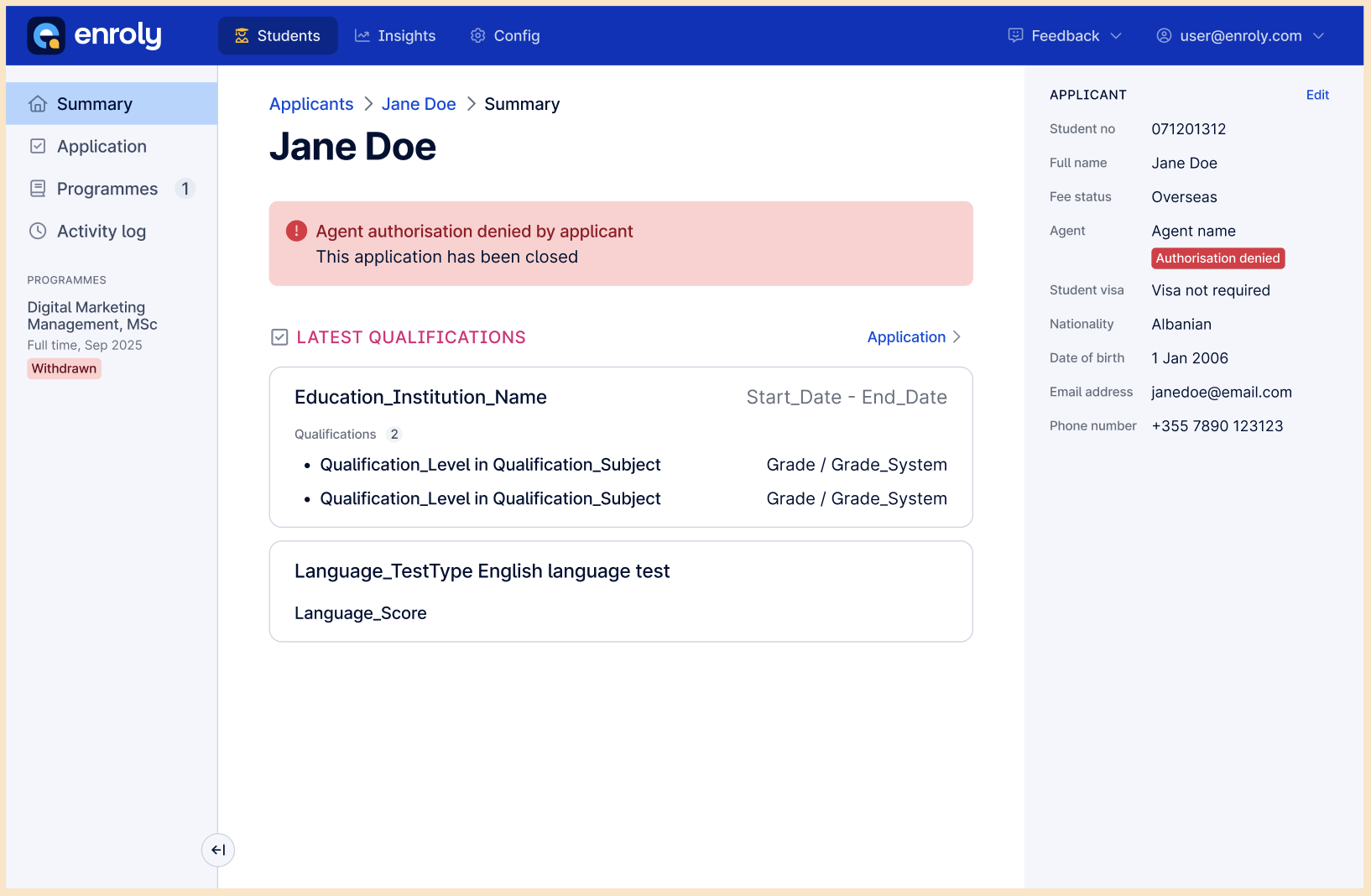
- The applicant's representation status updates to Authorisation denied (see the next section).
Email disassociation and re-registration
- The applicant's email address is disassociated from the agent-created record, and the associated account is removed.
- This lets the applicant re-register independently with the same email and start a fresh application that isn't linked to the agent or the previous file.
Agent notification
The agent is automatically emailed when an applicant denies their representation — subject line: "Enroly Apply – [Student name] has denied your request to act or speak on their behalf." No action is needed from anyone.
Summary of what happens when representation is denied:
|
Area |
Behaviour |
|
Application status |
File moved to Closed for both agent and university |
|
Programme status |
All programmes Withdrawn, reason "Closed by applicant" |
|
Agent access |
Fully revoked; replaced with "application no longer available" screen |
|
University view |
Representation status = Authorisation denied |
|
Applicant account |
Removed; email disassociated from the application |
|
Re-registration |
Applicant can start fresh, independently |
|
Agent notification |
Email sent automatically — no action needed |
Agent representation status (University view)
The agent representation status gives your team clear visibility into whether an applicant has authorised the agent assigned to their application. This tells you whether the agent is permitted to act or speak on the applicant's behalf — supporting appropriate communication, compliance and application handling.
Where the status appears
The representation status is shown in two places in the University view:
- Spreadsheet view — directly beneath the agent's name.
- Applicant File (summary panel) — below the agent's name on the right-hand side.
The field is informational only — university users can't edit it.
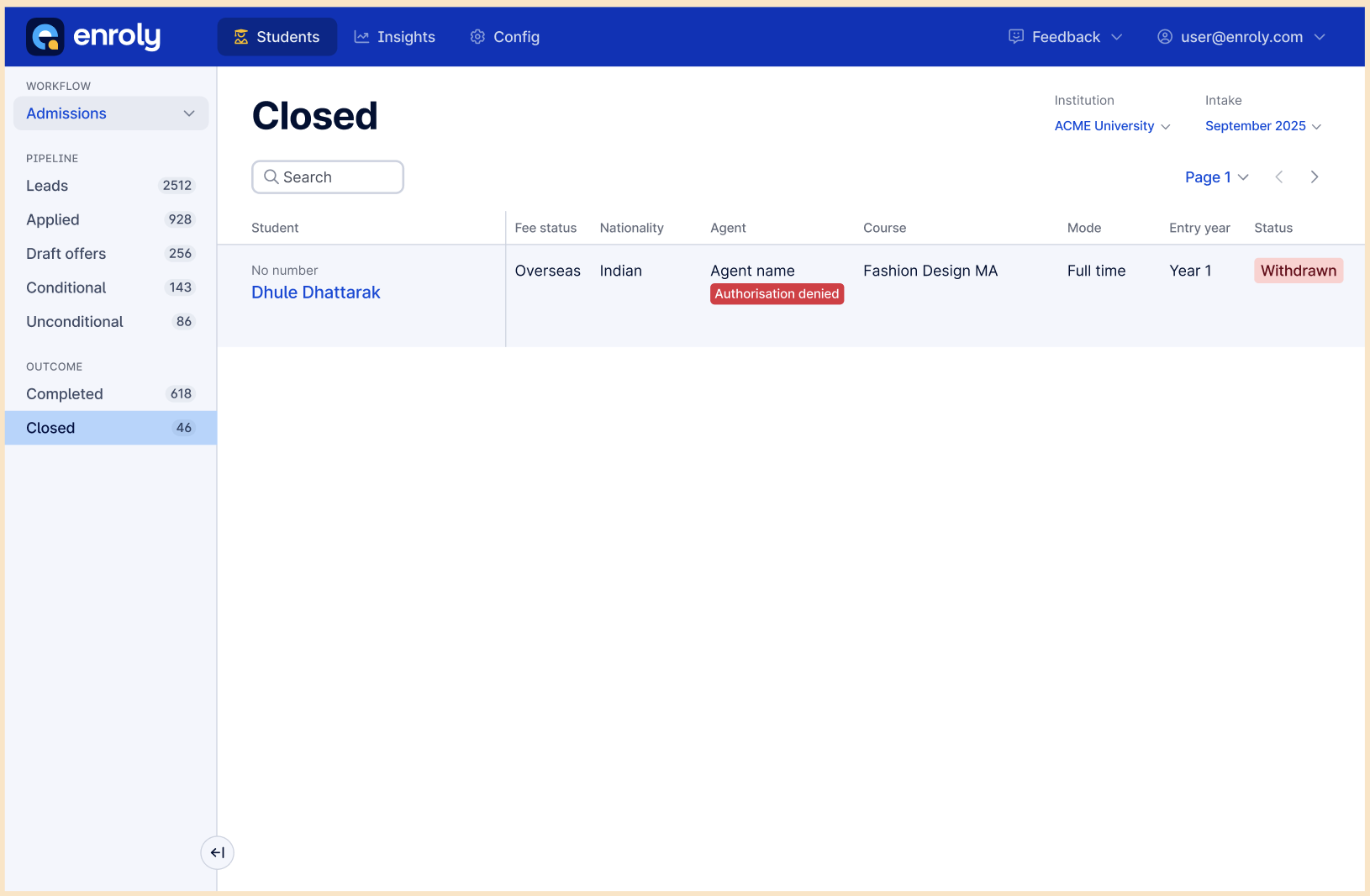
The status values
|
Status |
Meaning |
Shown in the UI? |
|
Pending authorisation |
The applicant hasn't yet made a decision |
Yes |
|
Authorisation denied |
The applicant has explicitly denied agent representation |
Yes |
|
Authorised |
The applicant has confirmed representation, or the agent was manually assigned |
No (not displayed) |
How the status is set:
- If the applicant responds via the Authorise Agent page, the status updates in real time.
- If an agent is manually assigned by the university, the status is automatically set to Authorised.
- No manual input is needed from university staff.
What happens when the status is "Authorisation denied"
When an applicant denies representation, the following changes are enforced to protect their privacy and prevent unauthorised agent involvement:
- Applicant summary page: a non-dismissible alert appears at the top, notifying staff that the applicant has denied agent representation.
- Summary panel: all action buttons are removed (including Reinstate offer and any other decision/action controls).
- Side navigation: the Add new programme (+) button is removed — the application is effectively frozen for further processing.
- Programme pages: all programme statuses update to Withdrawn, with a withdrawn alert showing "Closed by applicant" (the same reason used when an applicant declines an offer).
The Closed tab in the dashboard shows records with withdrawn or rejected statuses, including applications where agent representation was denied. This lets your team safely interpret the agent's role and limit actions when representation hasn't been granted.