
This article explains how agents access Apply, and the conditions that determine which universities they can see and act on behalf of. Understanding it will help your team manage which agencies can work with your applicants in Apply.
How agents access Apply
- Agents access Apply through their existing CAS Shield URL — there's no separate login.
- Once logged in, a Workflow dropdown appears in the spreadsheet view, letting agents switch between Admissions (Apply) and CAS Process (CAS Shield).
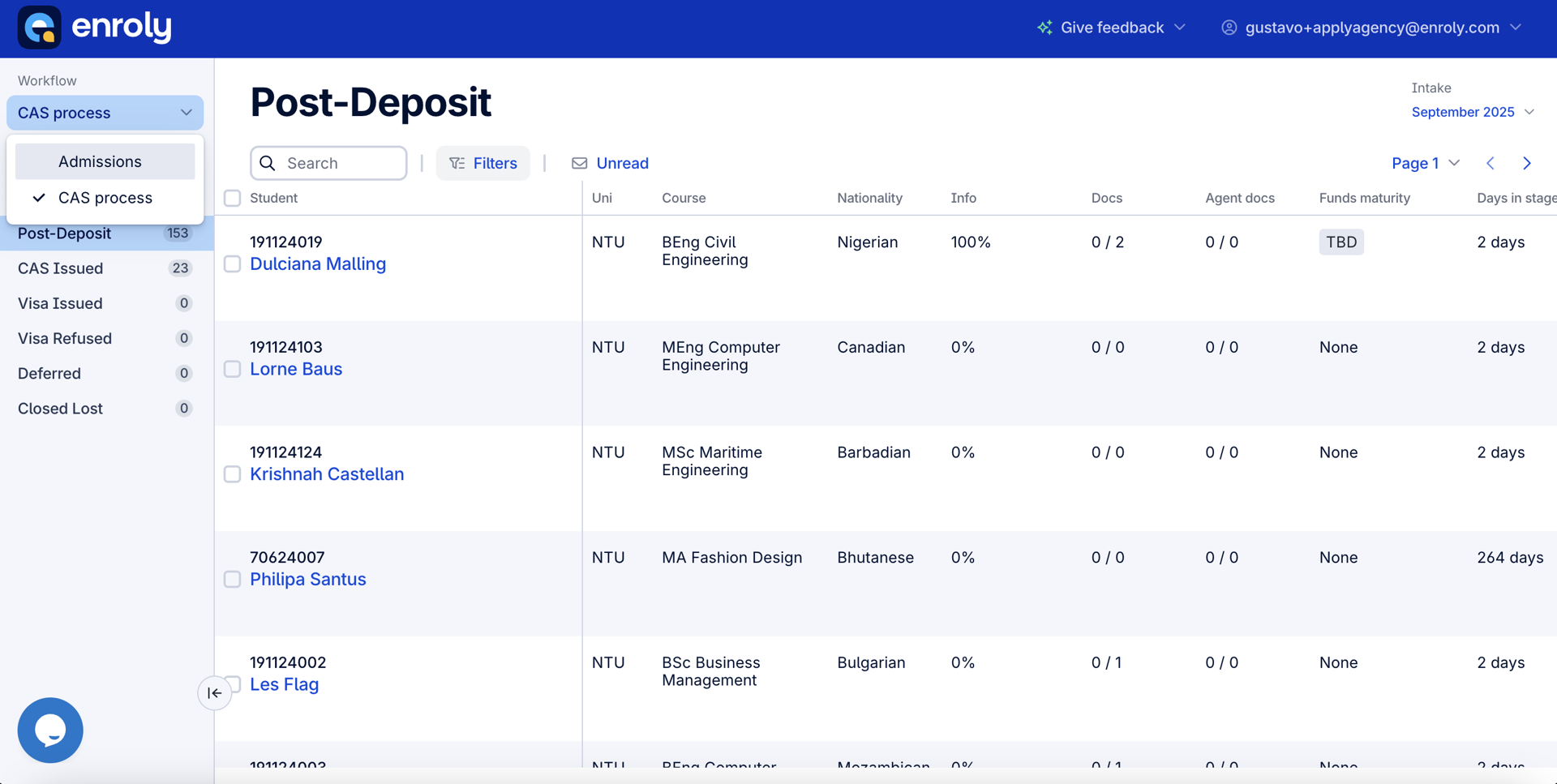
The Workflow dropdown only appears if the agent has access to Apply.
What determines agent access
An agent will only see and access Apply if both of these are true:
- Their agency is mapped to at least one Apply-enabled institution in CAS Shield (Admin ▸ Config ▸ Agent Alias Map).
- Their agency is not blocked from Apply access in the Agent Management Config (Admin ▸ Config ▸ Agencies).
Which institutions an agent sees
In Apply, agents only see the institutions they are mapped to in CAS Shield and not blocked from in the Agent Management Config.
To create applicants for an institution, an agent must be:
- Mapped to that institution in CAS Shield, and
- Not blocked in the Agent Management Config.
If an agent is blocked from all institutions, they won't see the Workflow dropdown and won't have access to Apply at all.
Managing and blocking agent access
Agent access to Apply is managed through Admin ▸ Config ▸ Agencies, where you can block an agency's access in two ways: for specific institutions, or for all institutions.
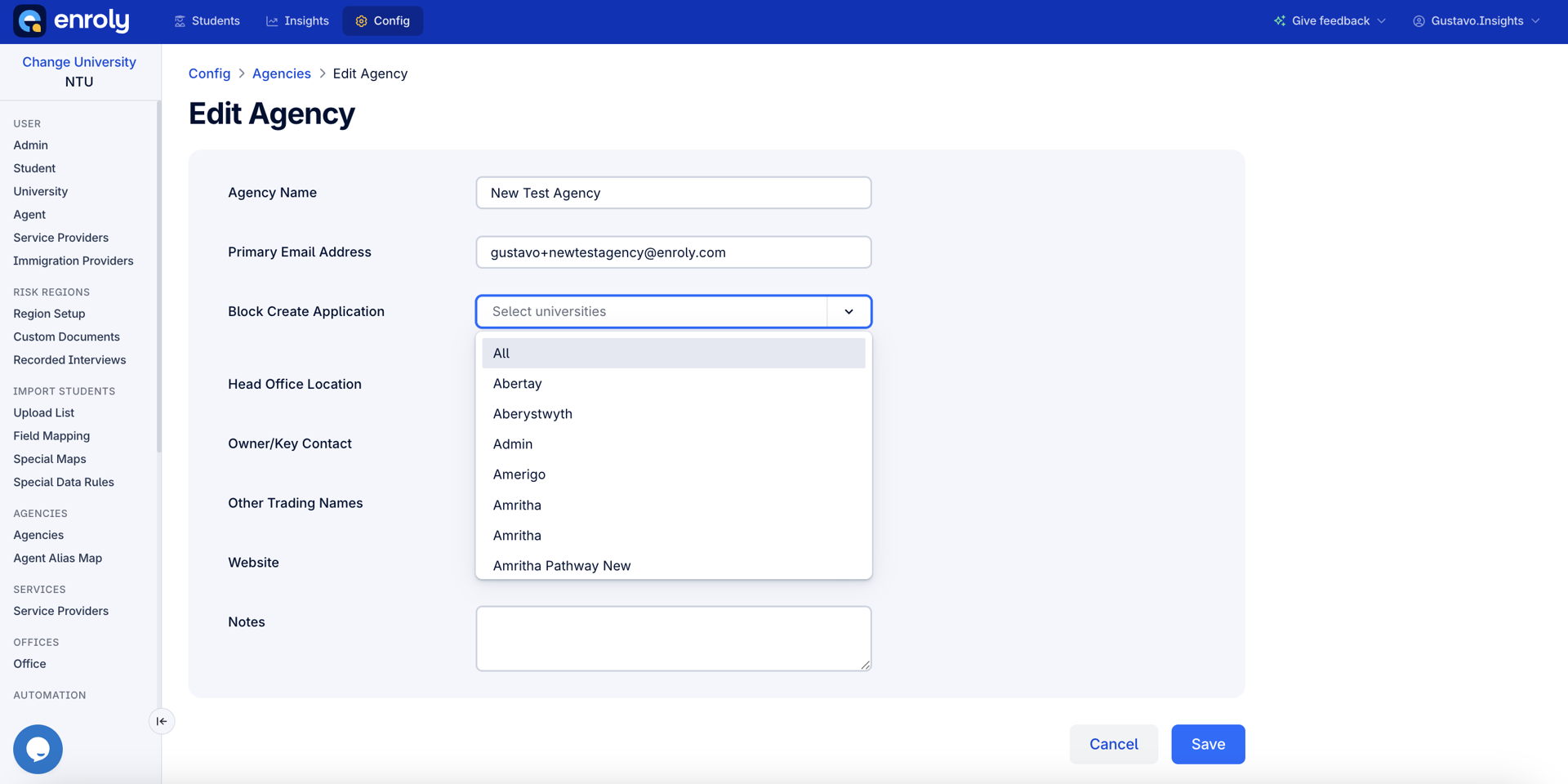
The blocking logic works as follows:
- Blocked from some institutions: the agent can still access Apply, but only sees the institutions they aren't blocked from.
- Blocked from all institutions: the agent has no access to Apply, and the Workflow dropdown doesn't appear.
- Not blocked from any institutions: the agent sees all the Apply institutions they're mapped to.