
Resolution Steps:
-
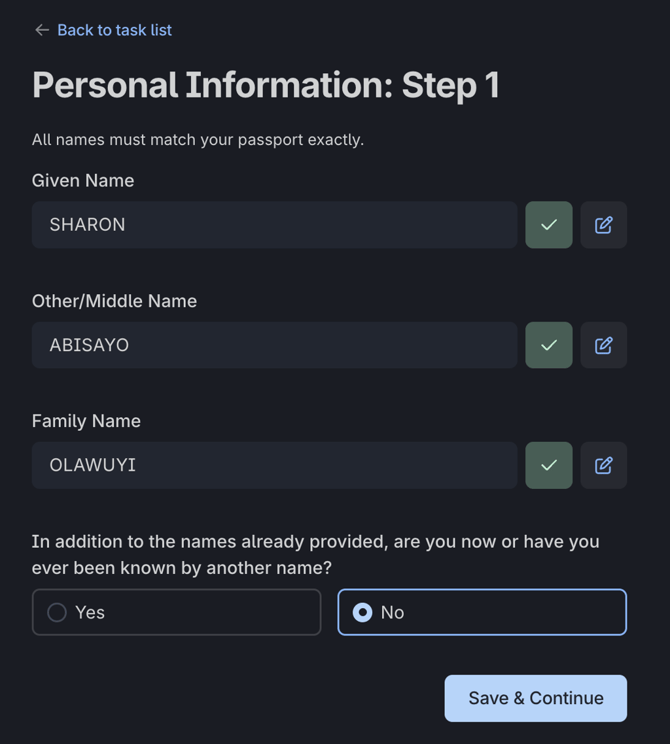
Confirm each piece of information:
- Students must ensure they click the checkmark icon for every question as they complete each step. If the information presented is not correct, the student can click 'Edit' to amend and confirm the right details.
- Clicking the checkmark icon confirms their answers and allows the system to recognise the section as complete.
- Failure to do so will prevent the “Continue” button from becoming active and students will be unable to move to the next step.
2. For the Financial Section:
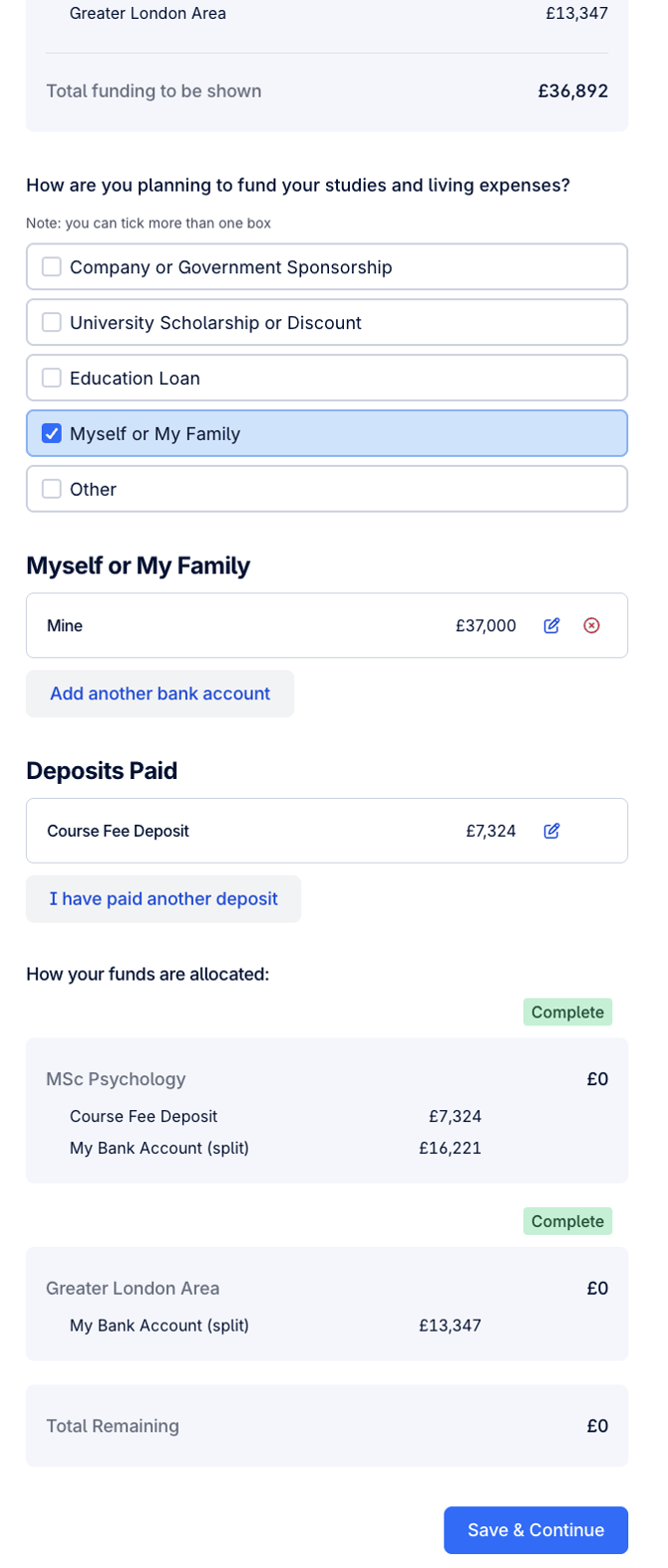
- Students must verify that the total required amount displayed in CAS Shield is fully covered by the financial means they provided.
-
If the tuition amount is not fully accounted for (e.g., through self-funding, scholarship, or sponsorship), the system will block progression to the next step.
-
Review the financial entries and adjust them to match or exceed the required amount.
Additional Tip:
-
Always double-check for incomplete or unconfirmed fields, even if they appear filled out.
Still Having Trouble?
If all sections are confirmed and financials are in order, but the button still does not work, please reach out to the support team for further assistance.