
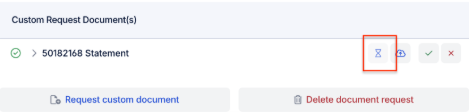
The document icon will display as “Processing” or show a sand timer if the student uploads a file that is encrypted or password-protected. In this case, the student must update the file and upload a version that is not encrypted.
To check whether a document is encrypted or password-protected, please follow the steps below:
-
Review the Student Record
-
Open the student’s profile.
-
Navigate to the Documents tab.
-
Locate any file with the status Processing.
-
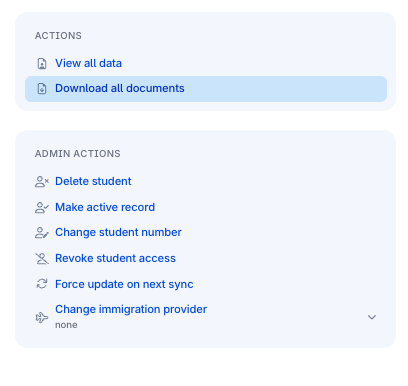
Download All Documents
-
Click the Download All button (top right of the Documents tab).
-
This will download a ZIP file of all uploaded documents.
-
Ensure your role in Configuration has the Download All Documents permission enabled. Please contact your IT to change your role to enable it.
-
Locate and Check the Stuck File
-
Open the ZIP folder.
-
Find the file that matches the one stuck in Processing.
-
Check if it is encrypted or password protected:
Quick Check (Mac & Windows):
-
Try opening the file.
-
If you are prompted for a password, the file is encrypted/password-protected.
Detailed Checks by File Type:
-
Windows (PDFs):
-
Open the PDF in Adobe Acrobat Reader.
-
Select File → Properties → Security.
-
If Security Method shows Password Security, the file is encrypted.
-
-
Windows (Word/Excel):
-
Right-click the file → Properties to confirm details.
-
Open it in Word/Excel.
-
Go to File → Info.
-
If you see Protect Document/Workbook enabled with a password, it’s encrypted.
-
-
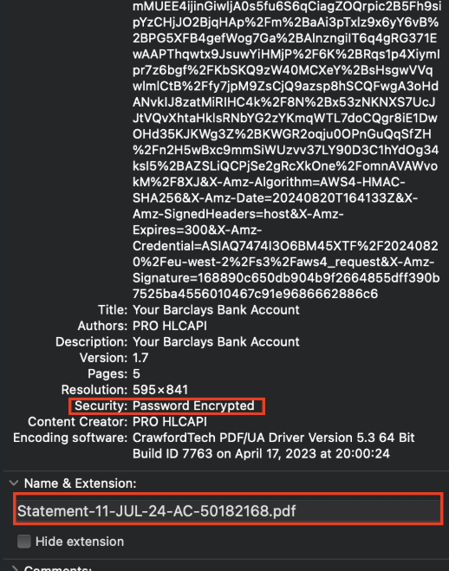
Mac (PDFs):
-
Open the PDF in Preview.
-
Go to Tools → Show Inspector (⌘I) → Security.
-
If password protection is enabled, it will be shown here.
-
-
Mac (Word/Excel):
-
Open the file in Word/Excel.
-
Go to Tools → Protect Document.
-
If password protection is checked, the file is encrypted.
-
4. If the File Is Encrypted or Password Protected
-
This is why the document is stuck in Processing.
-
Reach out to the student directly and request they upload a new, unencrypted version of the file.
-
Explain that the system cannot process password-protected or encrypted files.