
1. Select the student you would like to move to another stage.
Please note: you can select a single student record, or multiple students to move into another stage.
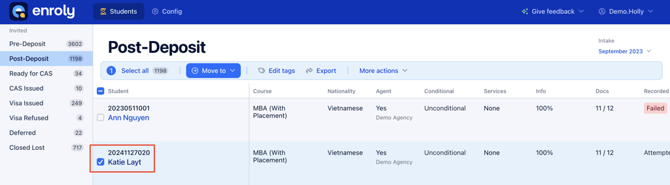
2. Select the button 'Move to' which will bring up a drop down menu for you to choose which stage you would like to move the student to.
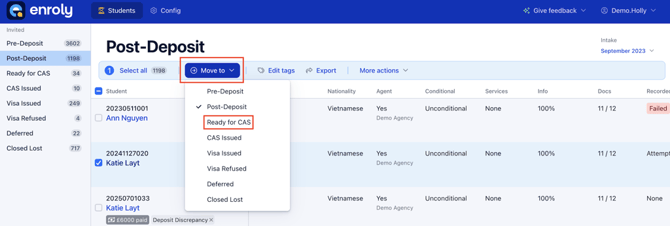
Once you move a student to a new stage, they will no longer appear in their previous stage and will automatically be listed in the new one. To find them, go to the new stage and search for their name or student number.
Remember: Moving a student into the Closed Lost stage means the student is no longer part of an active enrolment process and will be unable to access CAS Shield.
As well as manually moving student records, as above, there are automations available within CAS Shield that allow for student records to Auto Move between stages. You can find a separate article on Auto Move Rules here.