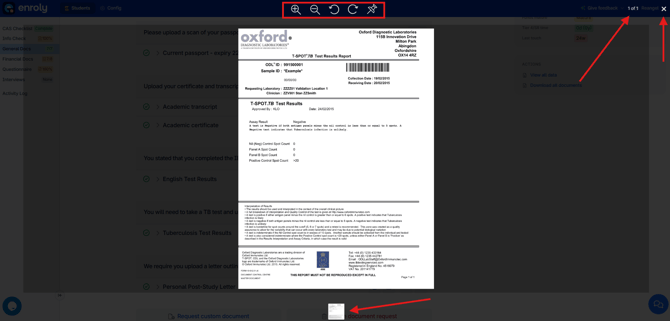
In the Spreadsheet view, search for the student whose documents need to be assessed.
Step 1: In the Spreadsheet view, search for the student whose documents need to be assessed.
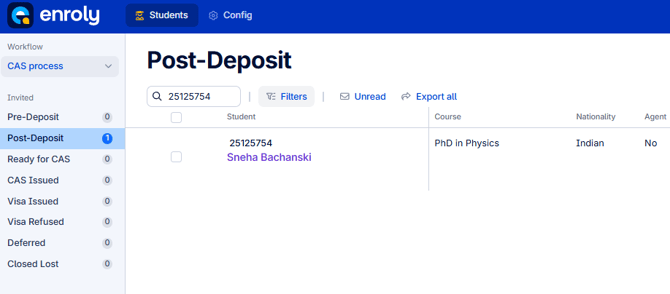
Step 2: Check the student’s uploaded documents. These are typically located in General
Documents and Financial Documents.
Note: If the count is showing as 0/0, there will be no docs uploaded to preview.
If it's 3/3, it means that the student has completed uploading all required documents for that specific section.
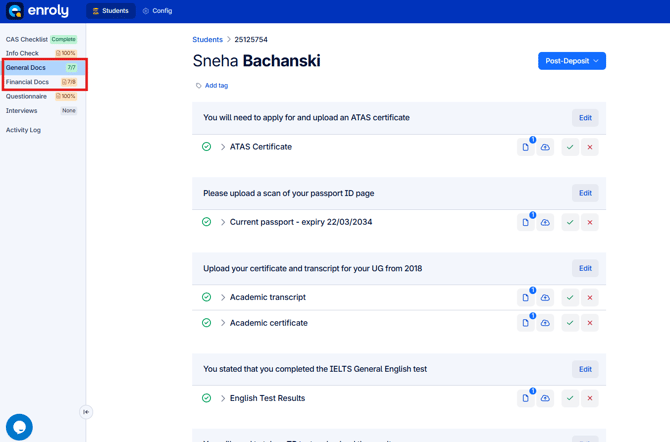
Step 3: If the applicant has uploaded a document, a green check mark will appear on the left.
-
Click the down arrow to view a written overview of the document.
-
To edit details on behalf of the student, click the Edit button. (Note: This applies to the entire
-
application, not just one document.)
-
Below the Edit button, you’ll see four action buttons:
-
Preview (Paper icon): View the uploaded document. The small number at the top-right shows
-
the total pages.
-
Upload (Cloud icon): Add additional documents for the student.
-
Approve (Check icon): Approve the document.
-
Reject (X icon): Reject the document
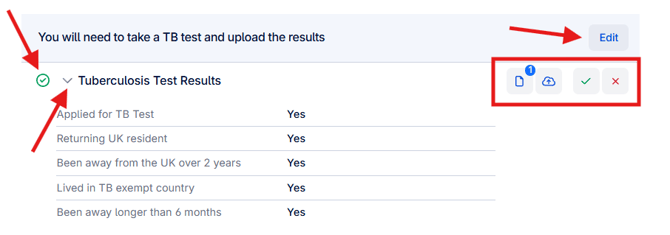
Step 4: After clicking the Preview button, you can:
-
Zoom in/out to adjust the view
-
Rotate the document
-
Navigate pages forward or backwards
-
Switch documents using the thumbnail panel
-
Pin the current view for easy reference
To exit, click the Close button in the top-right corner.