
With 150,000+ students flowing through the platform annually, Enroly has unprecedented real-time data, both to help you report on your own post-offer metrics, and from accross the sector for unique and powerful benchmarking.
The following resources are designed to help you get the most out of Data Insights, guiding you through the visualizations and bespoke reporting available, and demonstrating how to compare performance against real-time industry averages and competitor segments.
How can I access my Data Insights account?
Sign in to your CAS Shield account and select Insights next to the student tab in the upper right
corner of the screen.
PARTS OF DATA INSIGHTS
Summary page
You can select any of the data you wish to review.
-
Step 1: Click Choose Data.
-
Step 2: Clicking the Primary Intake gives you the option of looking at current or future intake
-
Step 3: The date range will allow you to select the admission cycle, which will provide you with all data six months previous to the start of the intake, one month after, or all accessible data connected.
You can also use custom data to pick certain date ranges.
You can click to add comparison to look at industry average. You can also compare intakes.
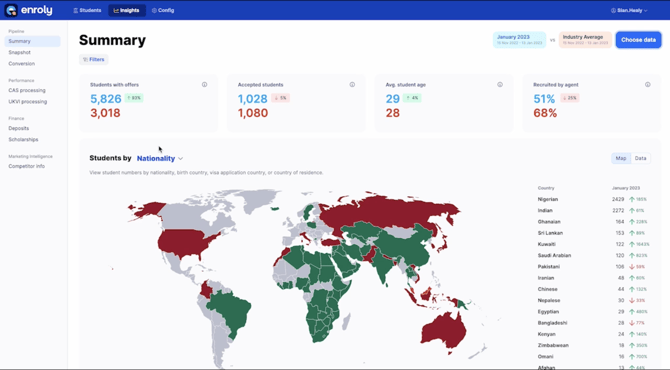
You'll then be able to see the summary page with 4 metrics.
-
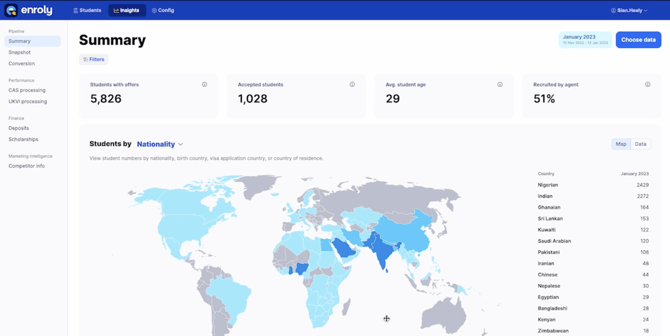
Student with offers (The number of students who've had an offer issued for this intake.)
-
Accepted Student (The number of students with offers in the Post-Deposit to Visa Issued stages.)
-
Average Student Age (Average age of students who've had an offer issued for this intake.
-
Recruited by Agent (Percentage of students assigned to an agent.)
If you wish to get more detailed data, you may use the filter option and select specific nationality and country of residence.