
Students may sometimes be logged out during an interview. To address this, it is essential to gather the right details, rule out common technical issues, and review the student’s activity log in CAS Shield. This guide outlines the steps to confirm information, identify the cause, and escalate to CAS Shield support if required. Following these steps will help resolve issues quickly and reduce the risk of further interruptions.
-
Confirm the student details
Ask the student for:
-
Their full name and student/application ID.
-
The date and time (with timezone) the logout occurred.
-
The browser and device they were using (e.g., Chrome on Windows, Safari on iPhone)
-
Highly advise the student to use a laptop or computer when taking the interview, as mobile devices and tablets are more prone to connection and session issues.
-
Check for common causes
Advise the student to:
-
Use Google Chrome (preferred) or another modern browser.
-
Ensure a stable internet connection (avoid switching between Wi-Fi and mobile data during the interview).
-
Clear cache and cookies, then log back in.
-
Disable auto-refresh extensions or ad blockers, as these can interrupt sessions.
-
Avoid multiple logins (e.g., opening CAS Shield in two tabs or devices at once).
-
Review the student’s activity log
-
Open the student’s profile in CAS Shield.
-
Navigate to the Activity Log tab.
-
Look for entries related to the interview session.
-
Check for:
-
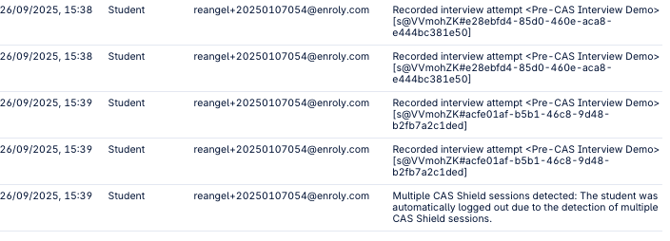
Multiple active sessions (student logged in on two browsers/devices).
-
Unexpected logouts or session timeouts.
-
The last recorded action before the logout occurred.
-
-
If multiple sessions are present, advise the student to only use one browser window/device at a time during the interview.
-
Ask the student to reproduce the issue
-
Request the student to retry the interview in an incognito/private browser window.
-
If the logout happens again, ask them to screen record or take a video of their entire interview session so you can see exactly how it occurs. You will also need this when reporting the issue to CAS Shield
-
Remind the student to note the exact step or question where they were logged out.
-
Report to CAS Shield Support
If the problem persists after the above checks:
-
Collect all details from Steps 1–5.
-
Submit a bug report following the Reporting a System Bug or Issue in CAS Shield process.
-
Include the student’s ID, browser/device info, activity log details, and any evidence provided.