Step 1: Identify the affected document
-
If you are unable to view an uploaded document, check which specific document(s) you are referring to.
Step 2: Download the document
-
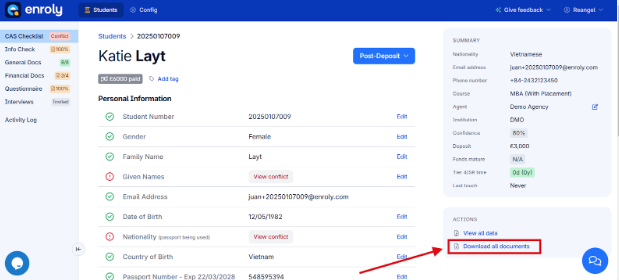
Try downloading the document from the student record.
- If you need multiple documents, use the ‘Download all’ option (this will download a zipped file),
Note: that only specific users have the 'Download all' feature. Please reach out to your CSM if you don't have this feature but need it.
Step 3: Check the uploaded document format
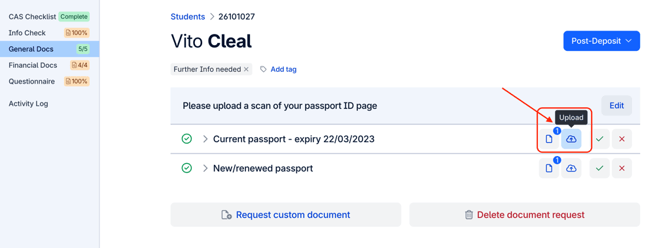
- Next to the relevant document, click on the 'Upload button' to view the document details.
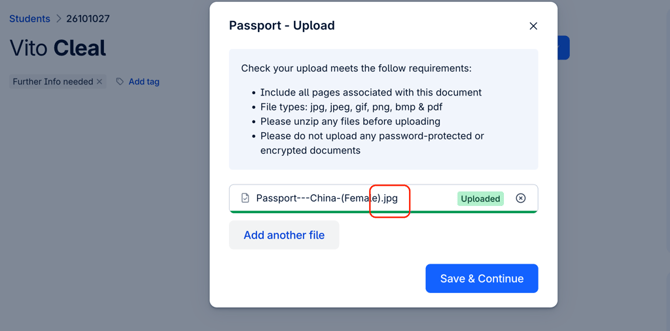
- Ensure the file format is supported (e.g., PDF, JPEG, PNG).
- If the file format is incorrect, ask the student to re-upload it in a compatible format.
Step 4: Request a replacement if needed
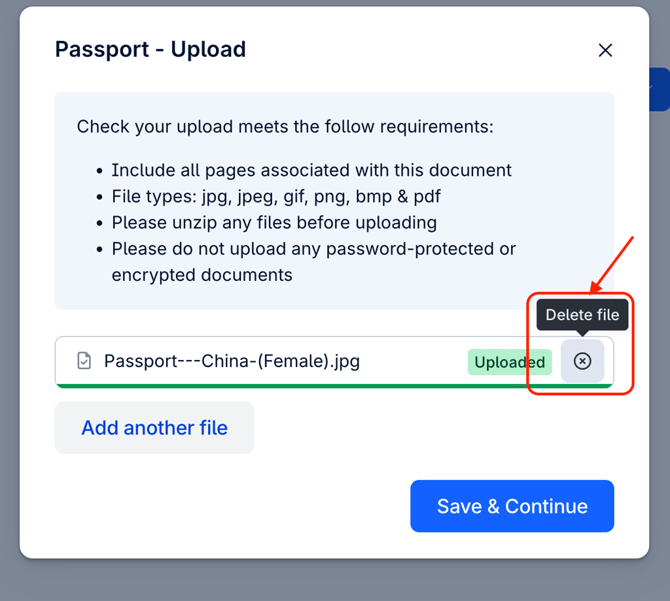
- If the file is corrupted or password-protected, delete the affected document and request a new upload from the student.
- Remind students not to zip or password-protect their files when uploading them.
- Alternatively, refer to the Delete a Document article for detailed steps.