
This article explains how your team can create and submit an application directly in Apply, on behalf of an applicant. It uses the same structured form applicants complete themselves, so the data stays consistent. Understanding it will help your team handle applications that need to be started internally.
When to use this
This is useful for:
- Applicants who can't complete the online form independently (for example, accessibility needs)
- Pre-qualified candidates (for example, an alumni fast-track)
- Clearing or late-cycle applicants
- Any case where the university needs to start the process internally
1. Create the applicant
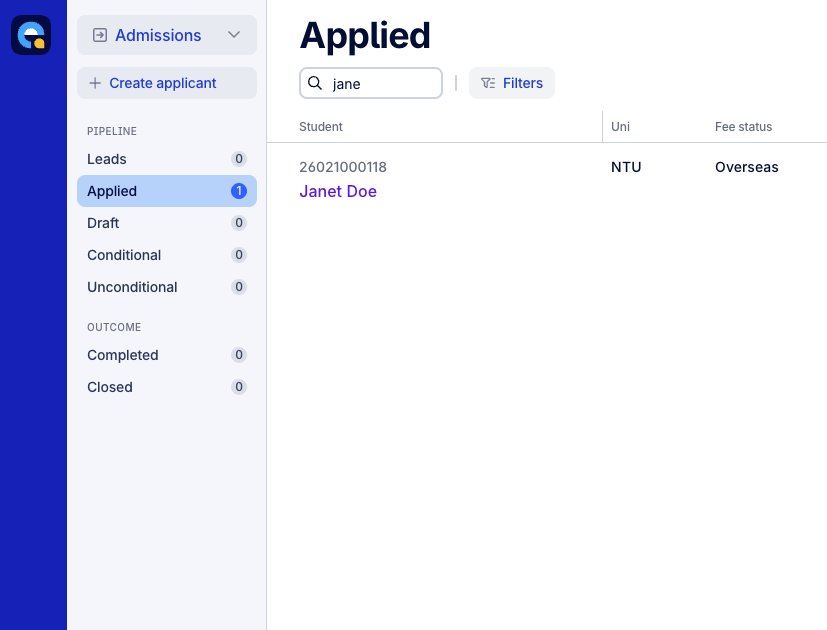
- In the Admissions workflow, select Create applicant.
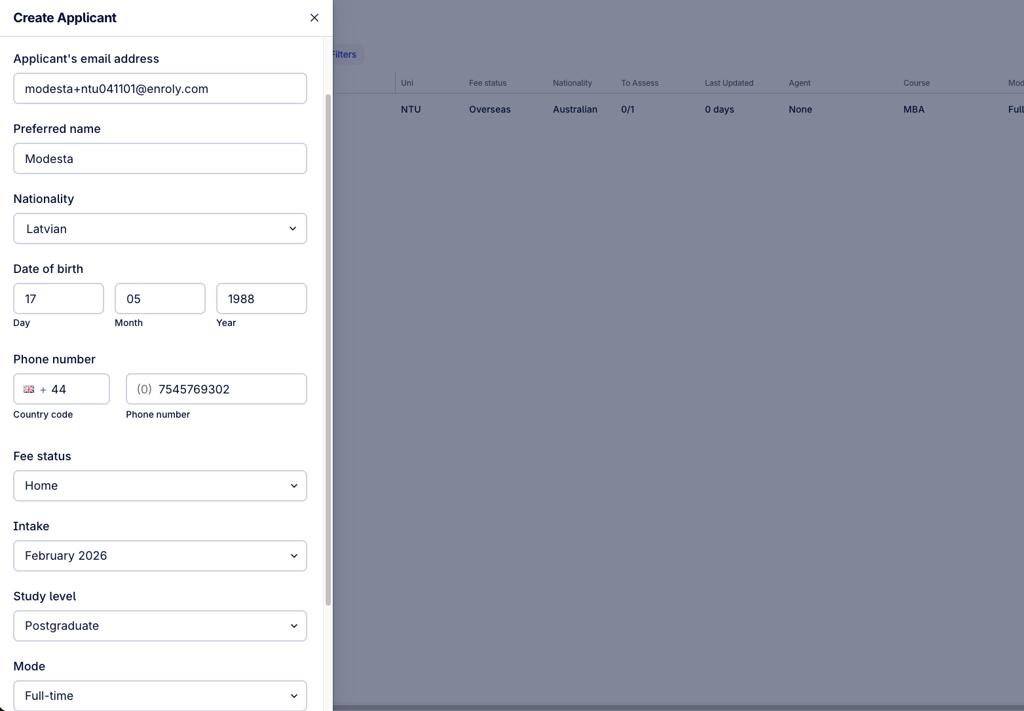
- Complete the applicant's details in the drawer that opens.
- Submit to create the applicant record.
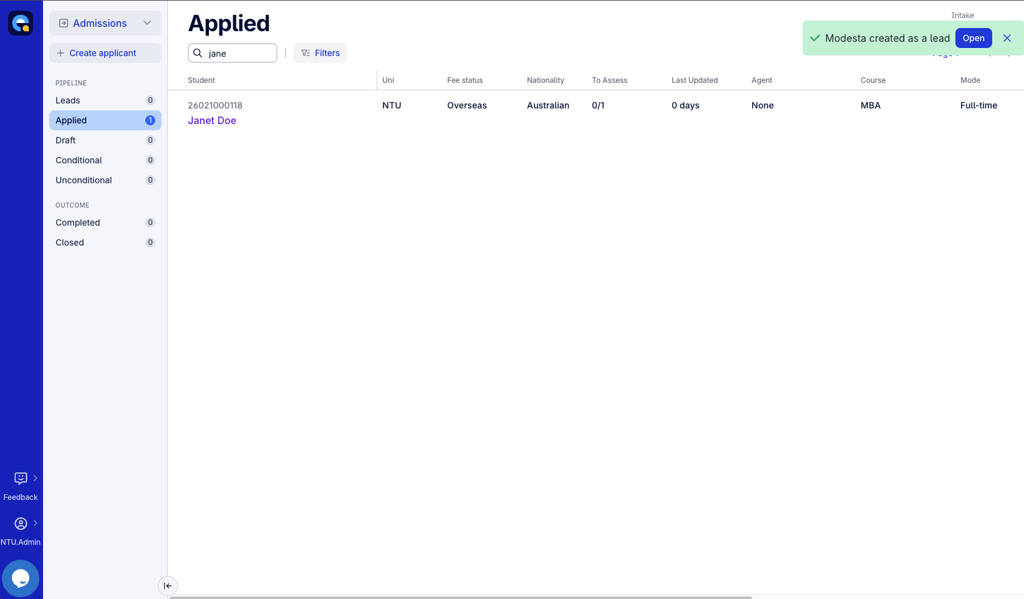
Once created:
- A confirmation message appears.
- A link opens the Applicant File.
- The record appears in the Leads stage for the selected intake.
2. Open and complete the application
When you open a lead your team created:
- The summary shows a message indicating the application is being completed by a university user.
- An Open application button appears.
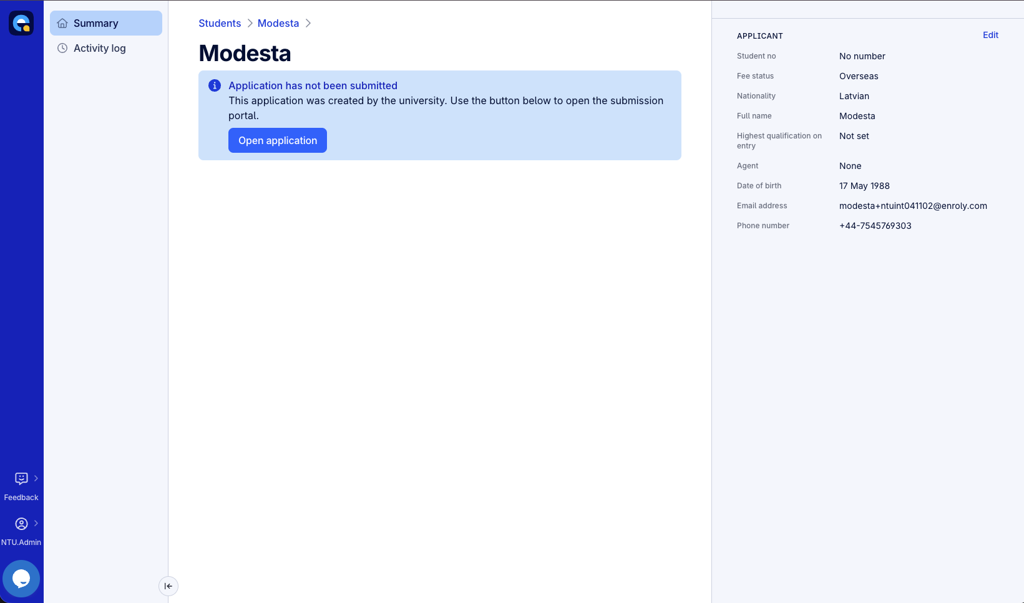
Selecting Open application opens the full application form in edit mode, so your team can complete all the tasks on the applicant's behalf.
Email verification is not required when the university submits the application.
3. Submit the application
Once all sections are complete, select Submit. On submission:
- The status updates to Applied.
- The application moves to the Applied stage in the workflow.
- The file then looks exactly like an application submitted by the applicant.
- Any later changes follow the standard edit-and-re-issue process.
Leads created by applicants or agents
If a lead was not created by university staff, that is it was started by the applicant or an agent, your team cannot access or complete the application form on their behalf. The file opens in the standard read-only view until it's submitted.
This ensures applicants (and their agents) remain in control of their own submissions where appropriate.
Activity log
All actions are recorded for audit and compliance. The log captures both the creation of the applicant by the university and the submission of the application, and each entry includes a timestamp, the person who performed the action, and their role.
Who can do this
All user roles can both create an applicant and complete the form on their behalf — including the View Only role.
Note that this is the one area where the View Only role can take an action, since creating an applicant on someone's behalf is a core admissions task.
Benefits
- Supports accessibility needs and internal admissions workflows
- Handles fast-track, internal and clearing applications
- Provides a full audit trail for compliance
- Uses the same structured form, keeping data consistent
- Transitions seamlessly into the normal application review stages