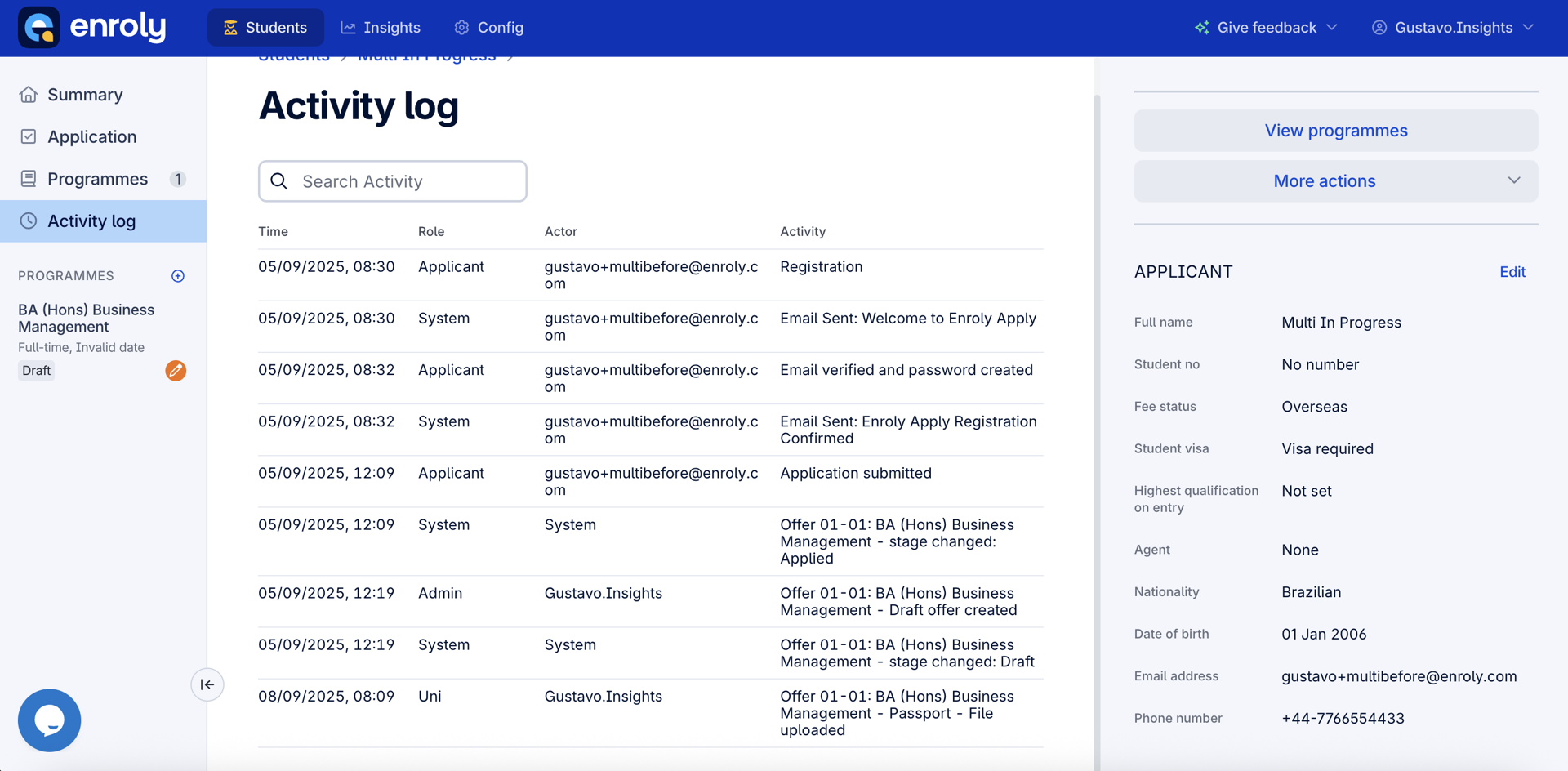
This article explains how your team views and manages applicant documents within the Applicant File. It lets you review complete submissions, upload documents on behalf of applicants where needed, and keep a clear audit trail.
Please note: there is currently no download function — documents uploaded by applicants or staff can be viewed and previewed, but not downloaded.
Viewing documents
Uploaded documents are displayed consistently across the Application and Programme pages, with clear visibility for multi-page and multi-file submissions.
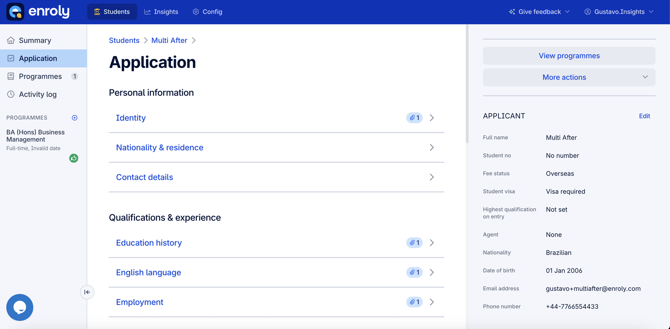
Understanding the icons and counts:
- On the Application pages, the attachment (paperclip) icon count refers to the number of unique document types uploaded — for example, a passport counts as one, regardless of how many files are attached to it.
- On the Application and Programme pages, the file count badge refers to the total number of pages available to preview. A badge is shown on all uploaded files with this total.
- This applies when a single file has multiple pages (e.g. a multi-page PDF), or when multiple files are uploaded under the same requirement.
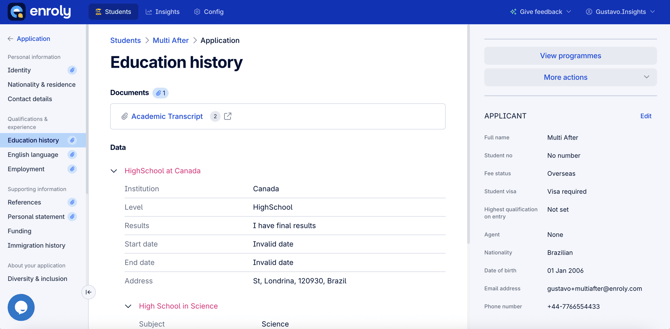
Previewing:
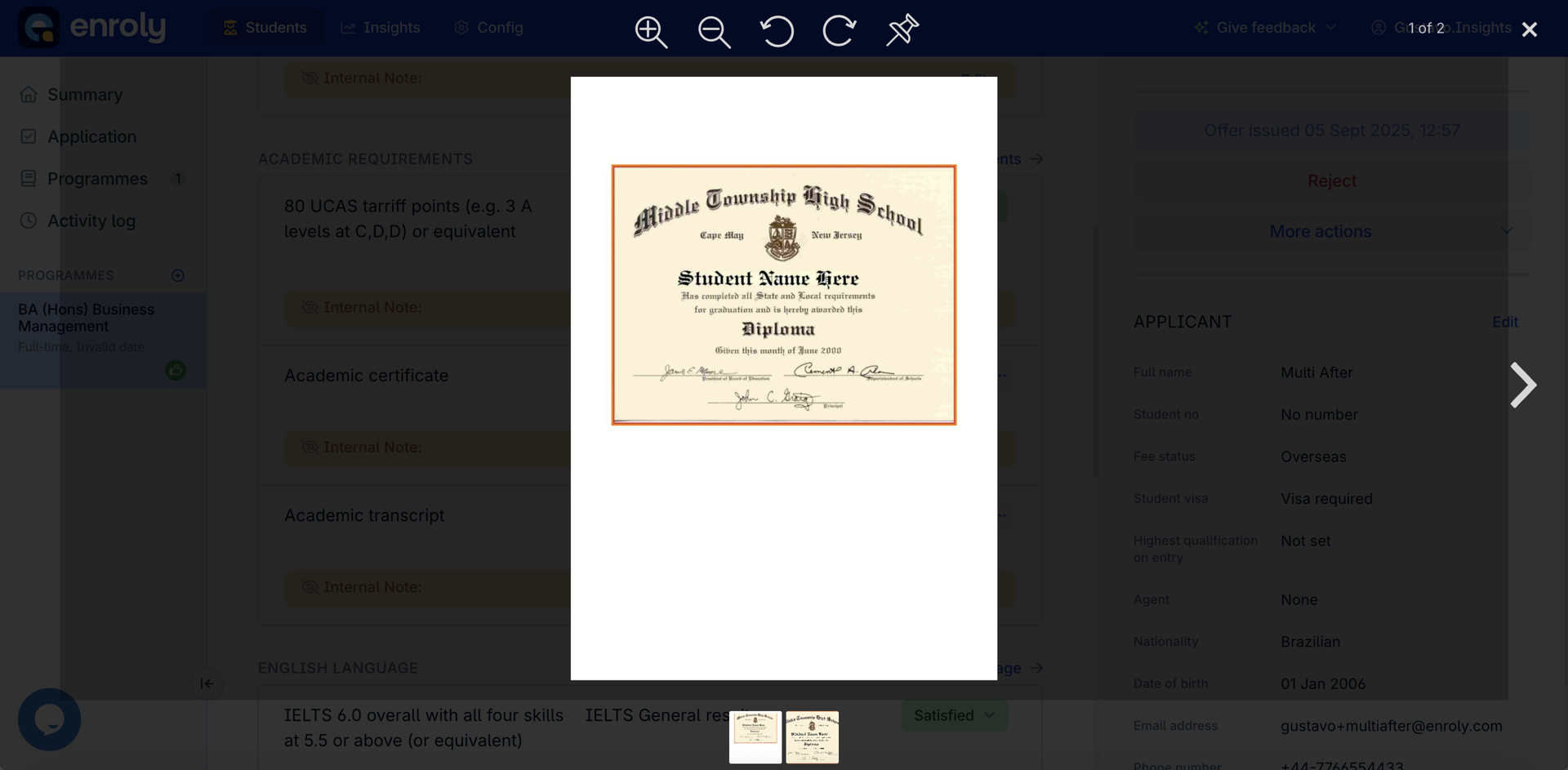
- All files open in a single preview window, where you can navigate between pages and files.
- This mirrors the existing CAS Shield file preview, for a consistent experience across both platforms.
Uploading documents on behalf of applicants
Your team can upload documents directly to certain requirements — useful when an applicant sends a document through another channel, such as email.
How it works:
- Select the 3-dot menu next to a requirement that needs a document upload.
- Select Upload file to open the upload window.
- Upload one or more documents (and delete previously uploaded ones if needed).
Points to note:
- Uploads are only supported for programme requirements satisfied by a document. Requirements satisfied by data alone are excluded — including the academic requirement, English language requirement, and payment declaration.
- Files uploaded by staff appear in the same place and format as applicant uploads, and are visible to all university users.
- Uploading is only possible within Programme Requirements, not in the Application section.
Deleting files
- Open the Upload files window from the 3-dot menu.
- Select the trash bin icon next to the file you want to remove.
Deletion is permanent and applies to both applicant- and staff-uploaded files. As with uploading, file deletion is only supported within Programme Requirements.
Activity log
All document actions are tracked automatically in the activity log for transparency — each entry records when a file was uploaded or deleted, against the relevant programme and requirement.