
This article explains how prospective students register for an Apply account, verify their email and sign in. Use it to support applicants who have questions during registration.
Accessing the registration page
- Applicants reach the registration page via a link on your university website.
- The page is the same for all applicants.

Completing the registration form
The applicant completes a short form with:
- Preferred name (required)
- Email address (required)
- Marketing consent (optional)
- Security check / CAPTCHA (required)
- Terms and conditions acknowledgement
The form will only submit once all required fields are complete and the security check has passed.
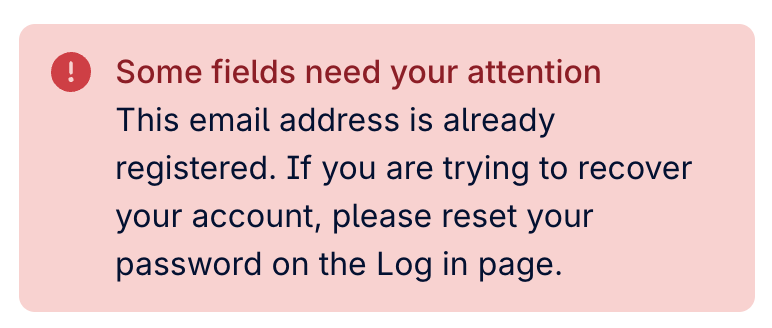
Email address must be unique
- Each applicant's email can only be used for one account.
- If an applicant uses an email that already exists, an error message appears.
- In this case, ask them to log in instead, or register with a different email.
Creating the account
When the applicant selects Create your account:
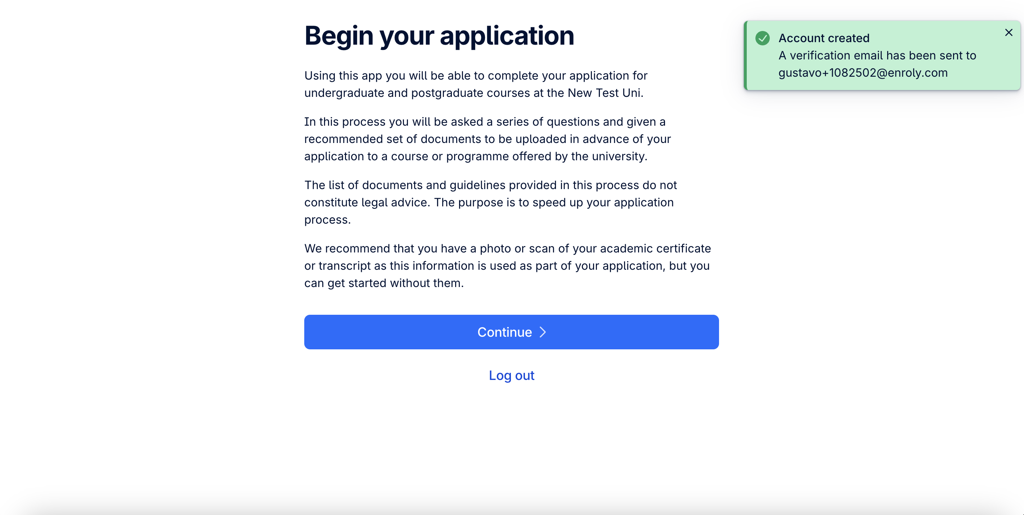
- They're taken to their Apply home page.
- A confirmation message appears: "A verification email has been sent to [email]".
- A verification email is sent to them automatically.
Applicants can start their application straight away — but cannot submit it until their email is verified.
Verifying email and setting a password
- The applicant receives a Welcome to Enroly Apply email.
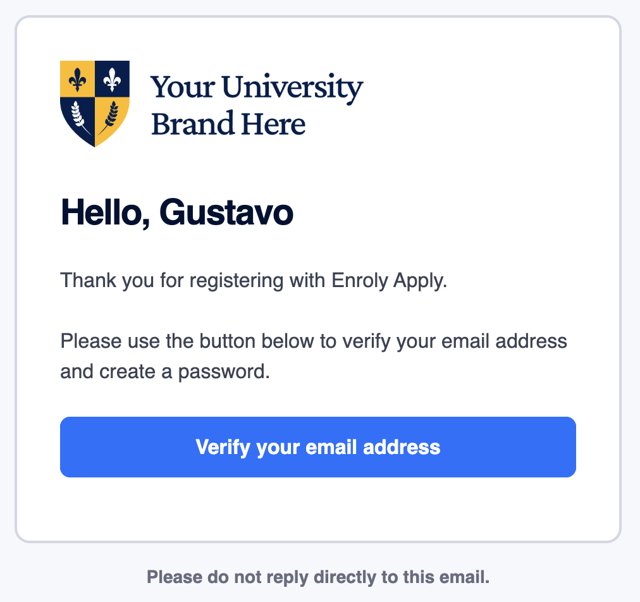
- They select Verify my email address.
- They're taken to the Set your password page (showing your university's branding).
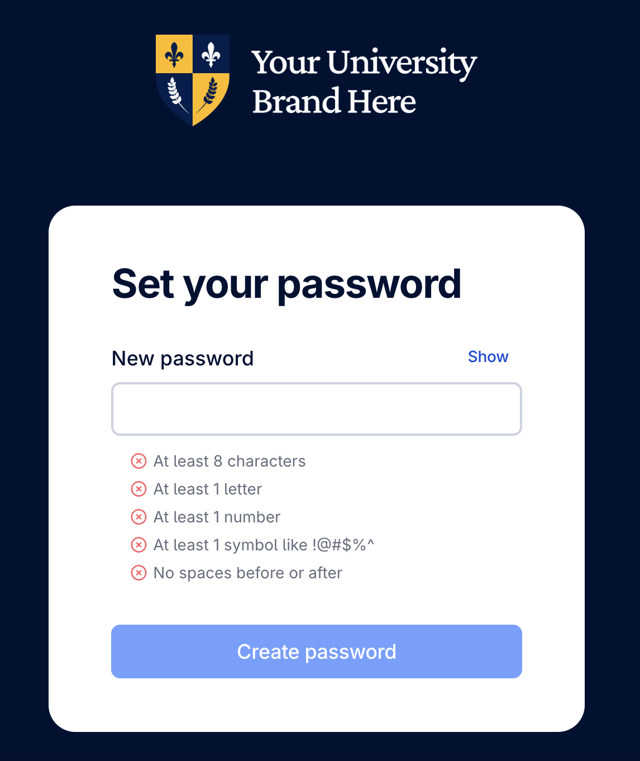
- After setting a password, they're logged in automatically.
- A registration confirmation email is sent.
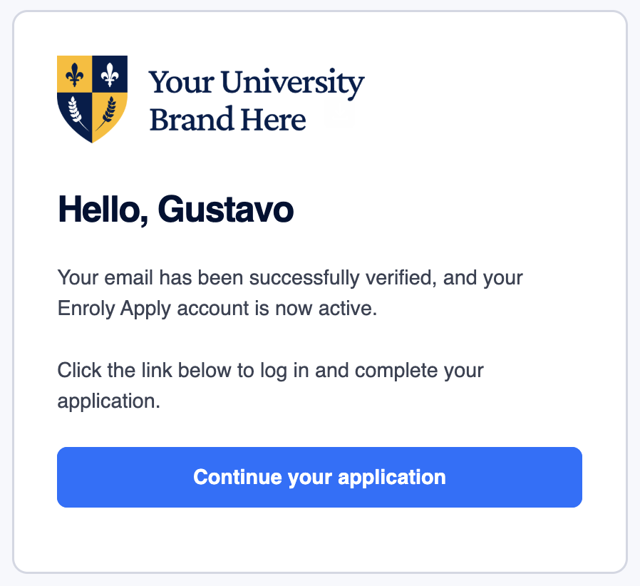
Before verification is complete
- Reminder banners appear on the applicant's home page, Your Information section, and Application section.
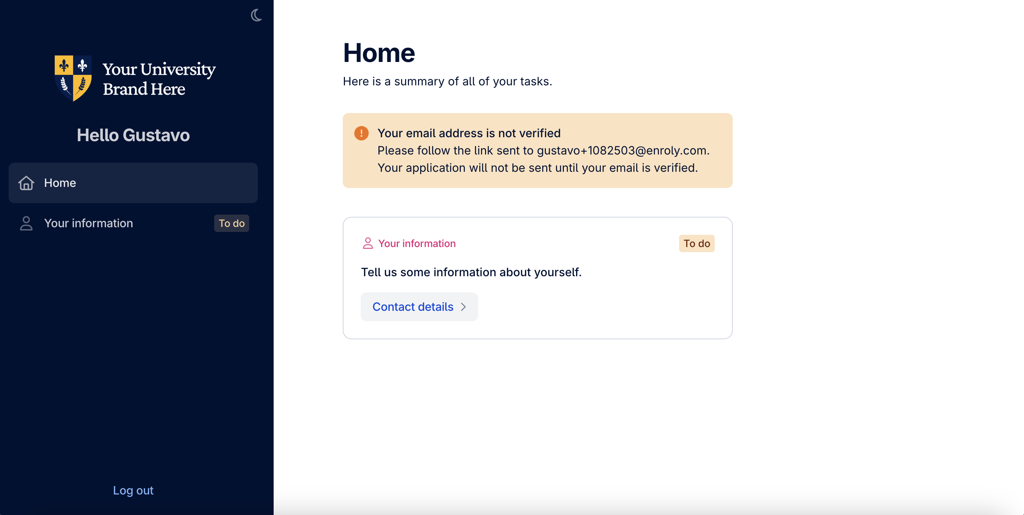
- Applicants can complete all parts of their application during this time.
- Application submission stays locked until the email is verified.
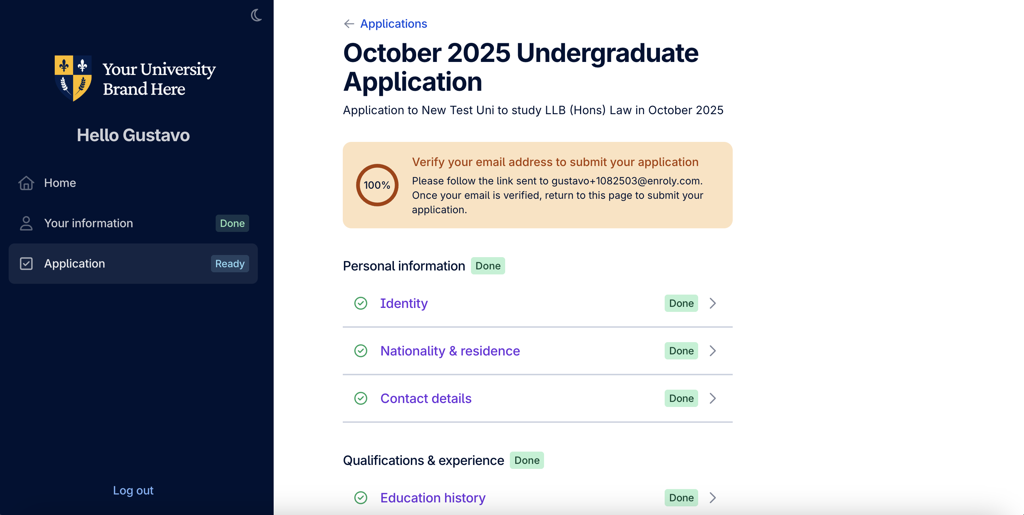
- The banners disappear automatically once verification is complete.
Logging in
- Applicants log in any time with their email and password.
- If incorrect details are entered, a validation message appears.
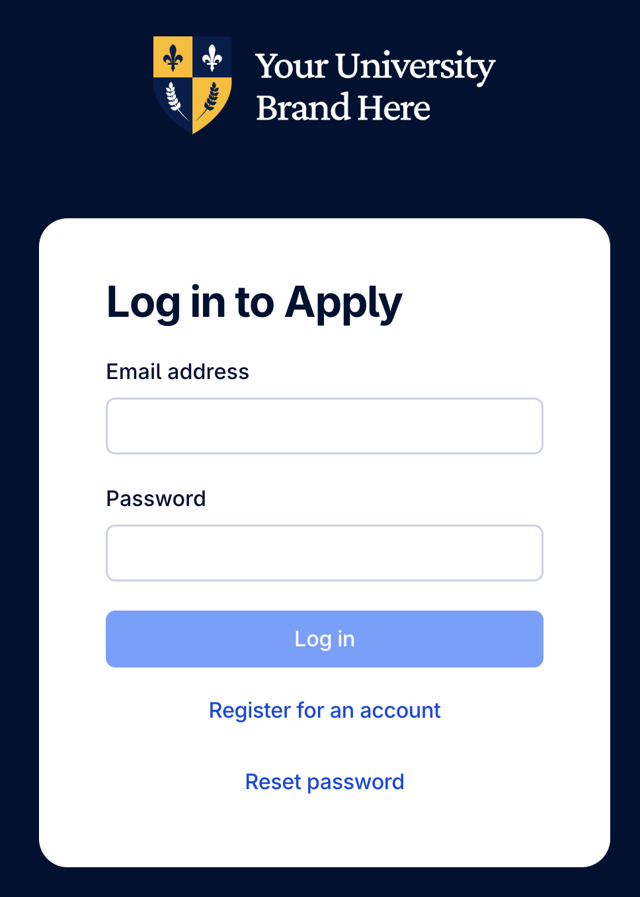
Resetting a password
If an applicant forgets their password:
- Select Reset Password on the login screen.
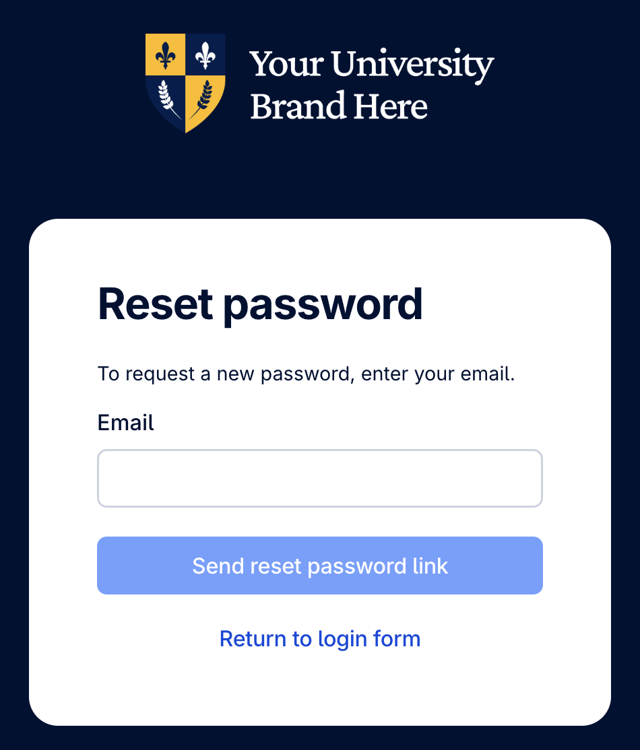
- Enter the registered email and confirm.
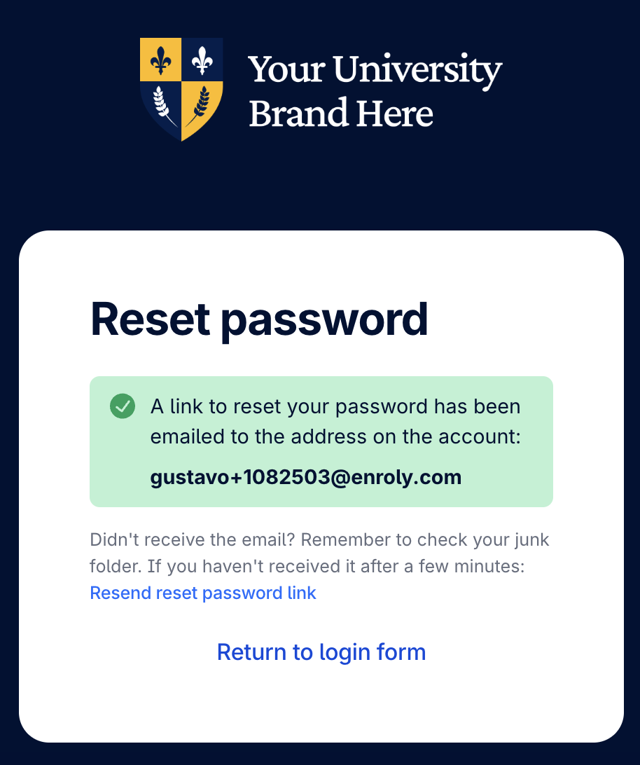
- A confirmation message appears on screen.
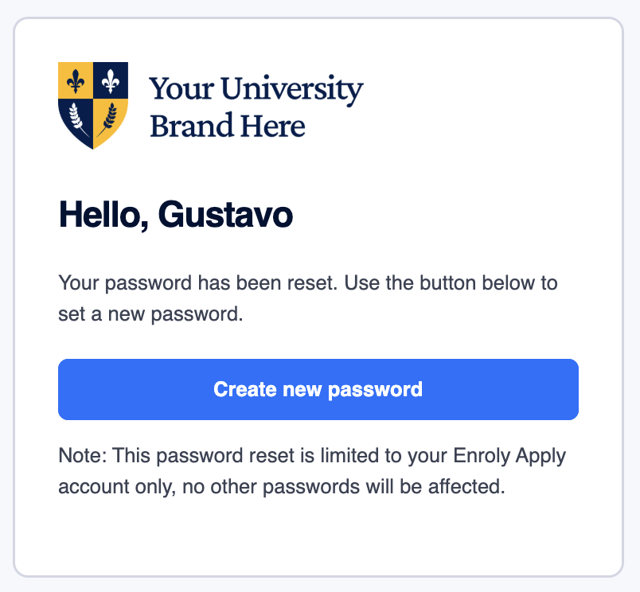
- A reset email is sent.
- Select Create new password and set a new password — the applicant is then logged in automatically.
Helping an applicant who can't log in? Check they're using the same email they registered with and that their email has been verified.