
This is the part of the applicant view where an applicant manages every programme they've applied to. Understanding it will help you support applicants as their applications progress. A single application can cover up to six programmes, and each progresses independently with its own status, tasks and outcome.
How applicants are notified
An applicant is prompted whenever the university needs something or makes a decision:
- Tasks requested (before an offer): when pre-offer tasks are requested automatically on submission, or manually by the university. The applicant receives an email, the programme appears under Programmes and the home page flags tasks to complete.
- Offer issued: the applicant receives an email and a home-page entry links straight to the programme.
- Rejection or withdrawal: the applicant may receive an email (if the university chooses to send one), and a home-page entry informs them of the decision.
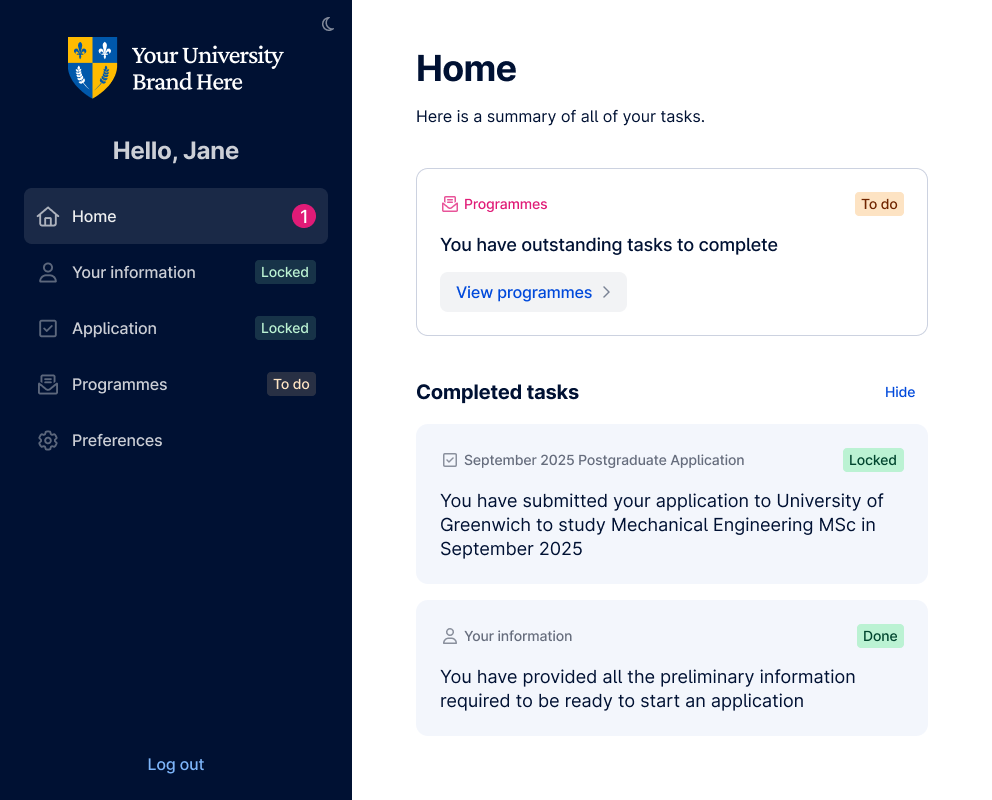
The home page summarises outstanding tasks, with a separate Completed tasks section.
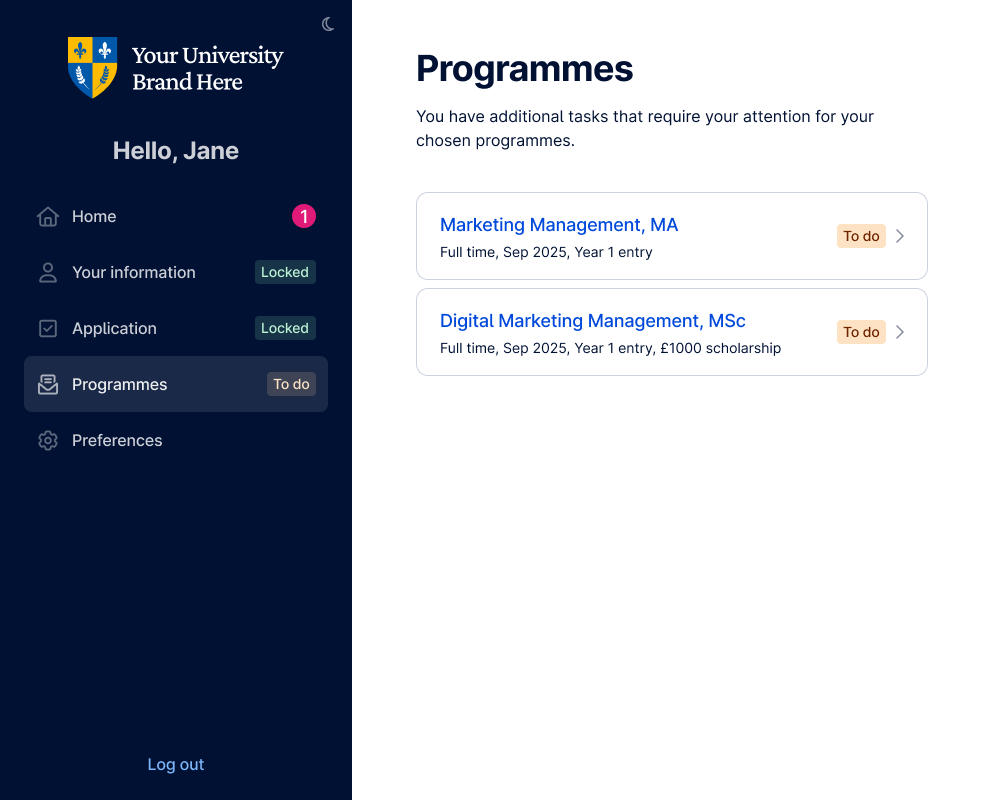
The Programmes section in the side navigation
- Lists every programme the applicant has applied to, each with its status and outcome.
- Shows a neutral prompt when attention is needed: "You have additional tasks that require your attention for your chosen programme(s)."
- The applicant opens any programme to see its details and tasks.
The programme page
Shows the programme details, status, and once an offer exists. The offer letter (viewable on screen and downloadable as a PDF). The wording reflects the stage: neutral before an offer, offer wording after.
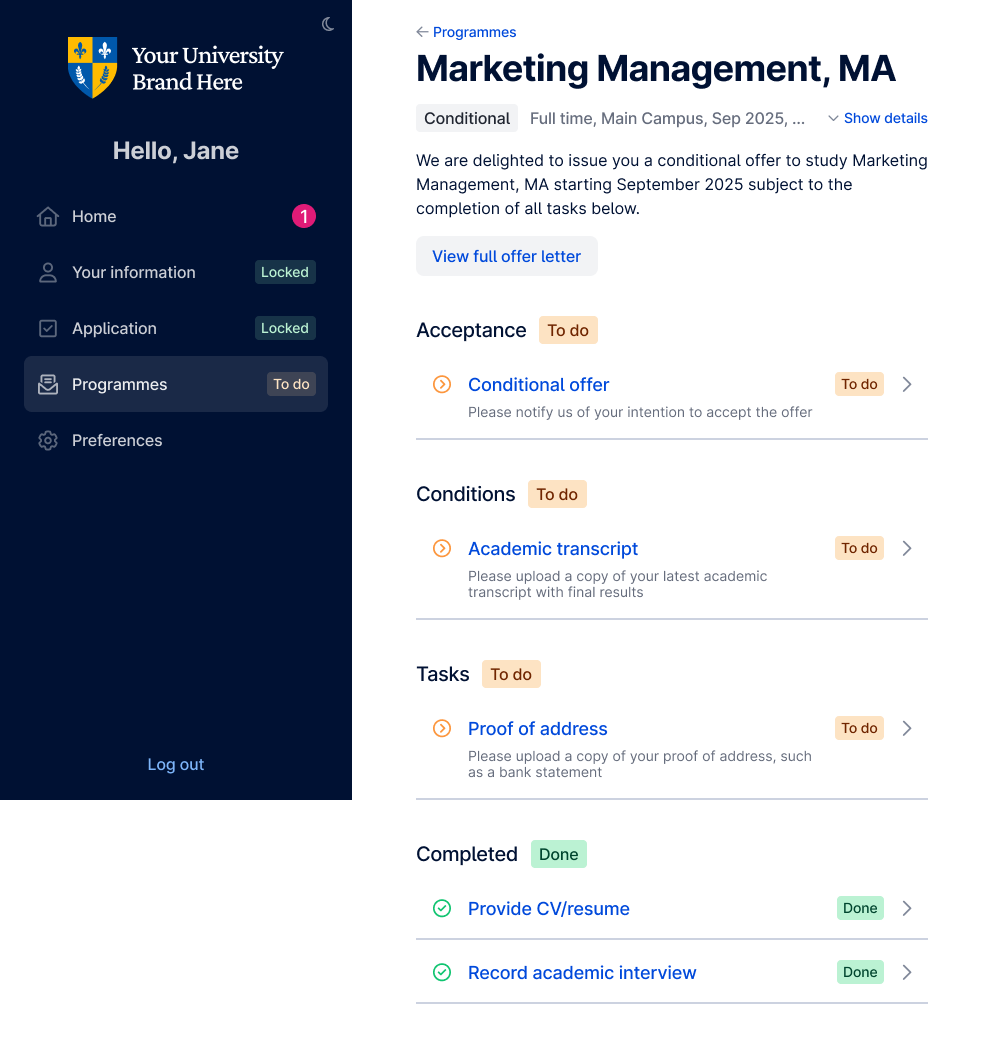
Tasks are organised into groups:
- Acceptance — accept or decline the offer (once issued).
- Conditions — the condition tasks on a conditional offer.
- Tasks — pre-offer tasks before an offer, and enrolment tasks once an offer is issued. Before any offer, this is the only group shown.
- Completed — tasks the university has assessed (Satisfied, Exempt or Provisional). Locked, read-only, and permanently visible.
Payment and Proof of payment are ordinary requirement tasks. They appear within Conditions or Tasks depending on configuration, pinned to the bottom of their group.
How programme tasks workProgramme tasks are the requirement tasks an applicant completes on a programme, for example a passport, academic results, an English test, referee details, a document upload, an interview, or a payment. The same task can be requested at any level: as a pre-offer task, a condition, or an enrolment task. How a task is presented, completed and assessed is the same at every level, only when it's requested differs.
How tasks are satisfied
Every task is satisfied in one of a few ways:
- Document upload — standard and custom uploads (e.g. transcript, CV, proof of address, portfolio), plus dynamic uploads triggered by the applicant's own data (e.g. proof of name change).
- Document upload + structured data entry — passport and the visa-related tasks.
- Data entry — academic results, English language results, referee details.
- Data entry + document upload — payment (declaration) and proof of payment (upload).
- Video recording — recorded interviews.
- Booking a slot — interview booking.
Task behaviour and lifecycle
- Visibility: applicants see the tasks the university has requested, grouped on the programme page by level (Tasks for pre-offer and enrolment, Conditions for conditions).
- Completion: completing a task changes its status from To do to Done, which signals the university it's ready to assess. The original application data is preserved.
- Assessment: once the university assesses a task as Satisfied, Exempt or Provisional and pushes an update, the task moves to the Completed group and becomes Locked — permanently visible but read-only.
- Re-requests: if a submission is insufficient, the university can re-request it. The status returns from Done to To do, and the applicant must provide the information again (the previous entry isn't pre-filled, though it's retained for the university's reference).
- Reuse information: if the same document or passport task has already been completed on another of the applicant's programmes, a Reuse information prompt lets them reuse it instead of uploading again.
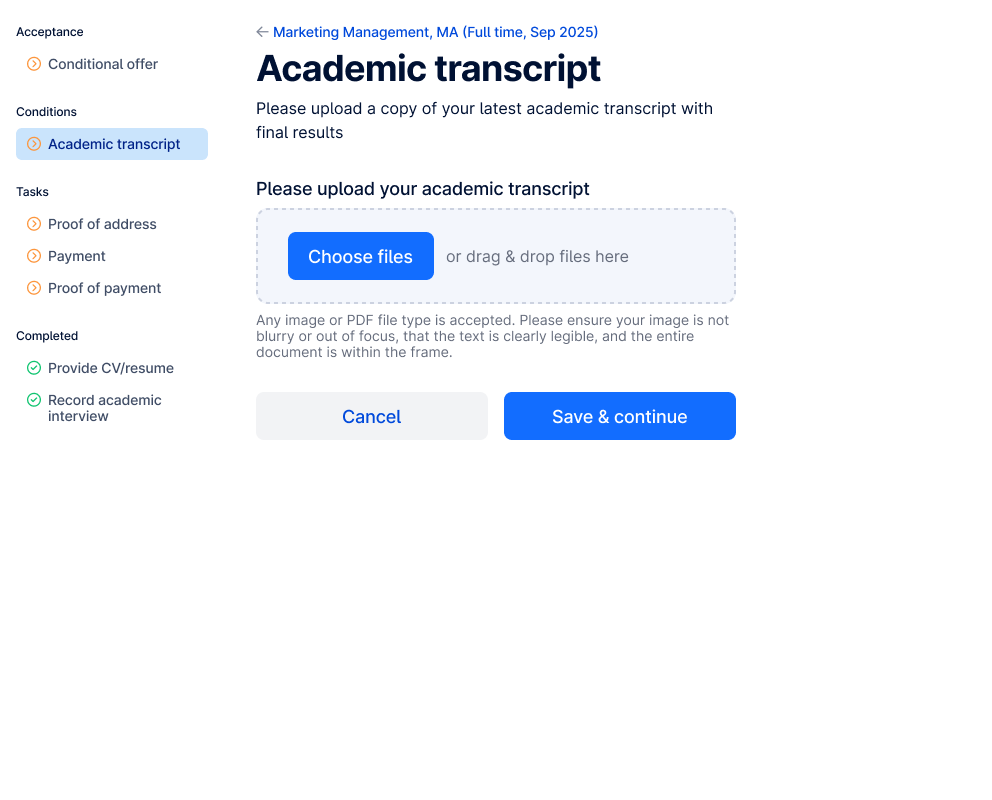
Document upload tasks
Satisfied by uploading a document, with no data entry.
- Standard and custom uploads — appear whenever the university has configured them (e.g. transcript, CV, proof of address, proof of immigration status, portfolio).
- Dynamic uploads — appear only when the applicant's own application data calls for them. They're data-driven (no task is created if the answer wasn't given), create one task per declared entry, and carry personalised text referencing the specific entry.
- Example (live): Proof of name change — triggered when an applicant declares a previous name; one task per previous name.
Some dynamic upload tasks (covering visa refusals and additional nationalities/countries of residence) are planned but not yet released. To confirm before publishing: whether to mention forthcoming tasks at all in a client article, or only document live functionality.
Document upload + data entry tasks
The applicant uploads a document and completes a short set of fields.
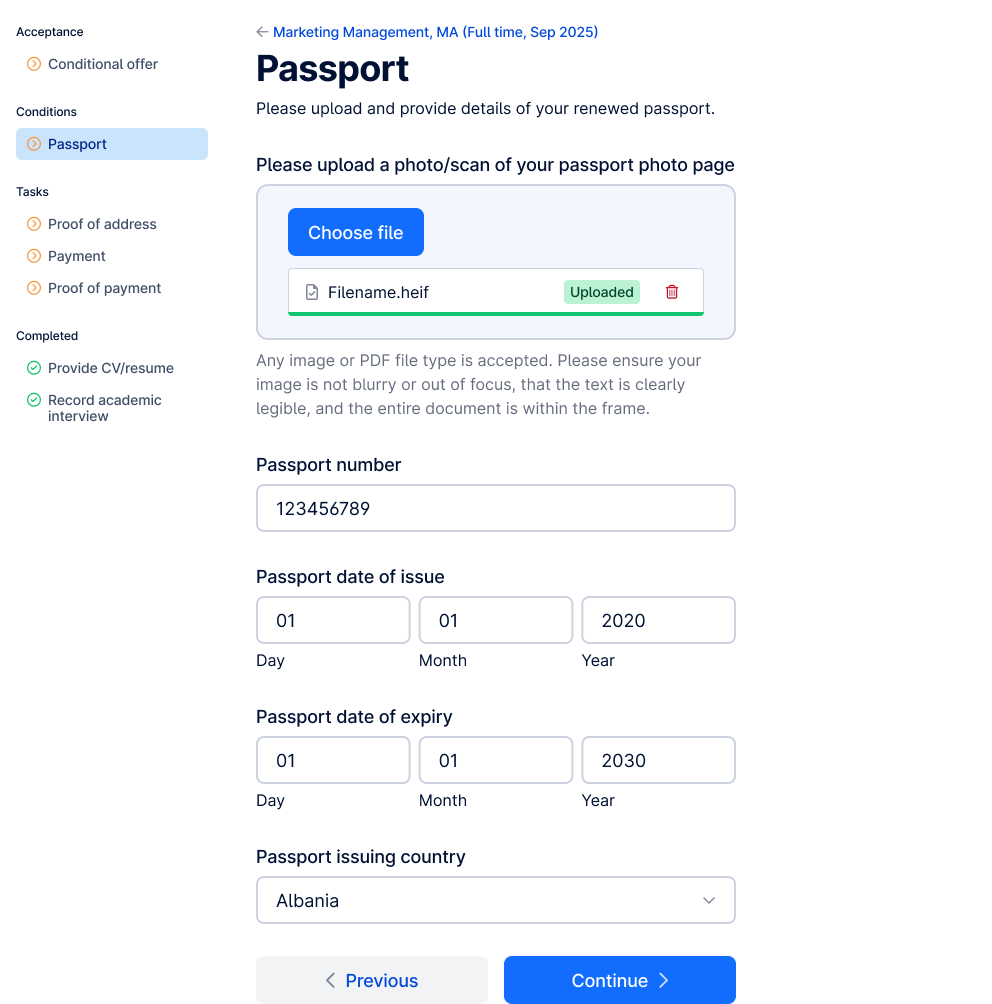
- Passport — the applicant uploads a copy of their passport and completes four fields: passport number, date of issue, date of expiry, issuing country. Where the same passport task was completed on another of the applicant's programmes, Reuse information lets them reuse both the file and the data.
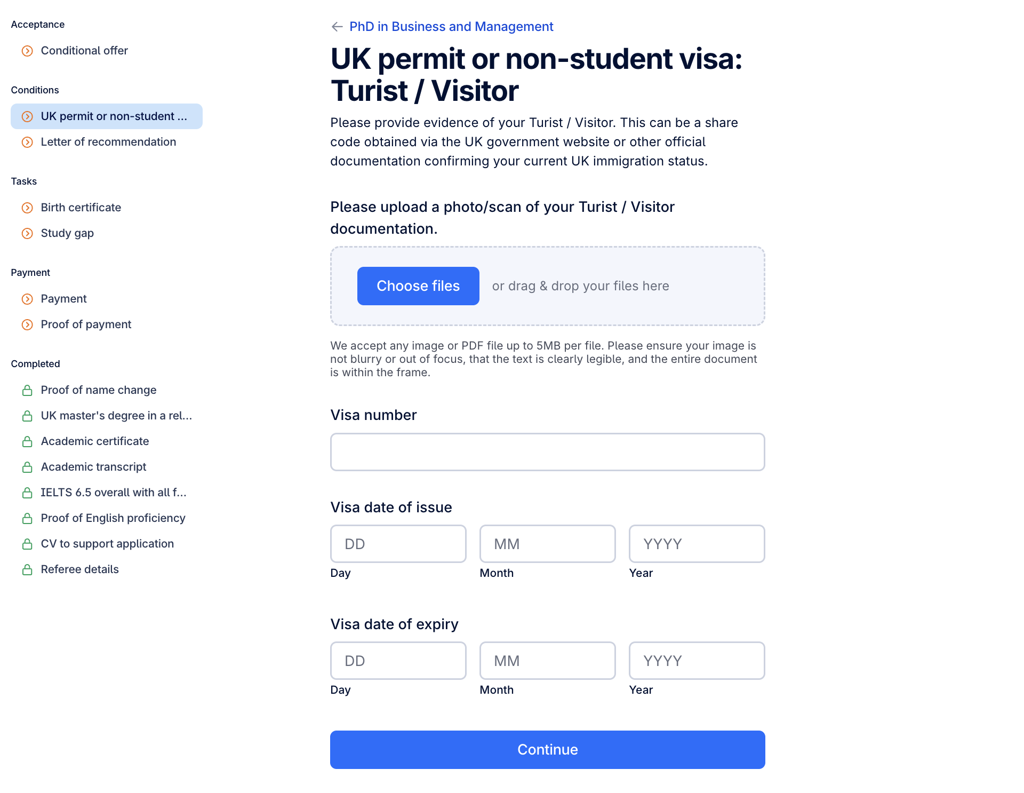
- Visa-related tasks (UK permit / non-student visa, and previous UK student visa) follow the same upload-plus-data pattern, triggered dynamically by what the applicant declared in their immigration history.
Academic results and final academic results
Data-entry tasks where the applicant provides qualification details rather than uploading a document. A programme can have more than one academic entry requirement (a main one plus subject-specific ones), and each is assessed against a particular study, so an applicant may see several similarly-named tasks, distinguished by the study in the task title (e.g. GCSE results, Final High School results).
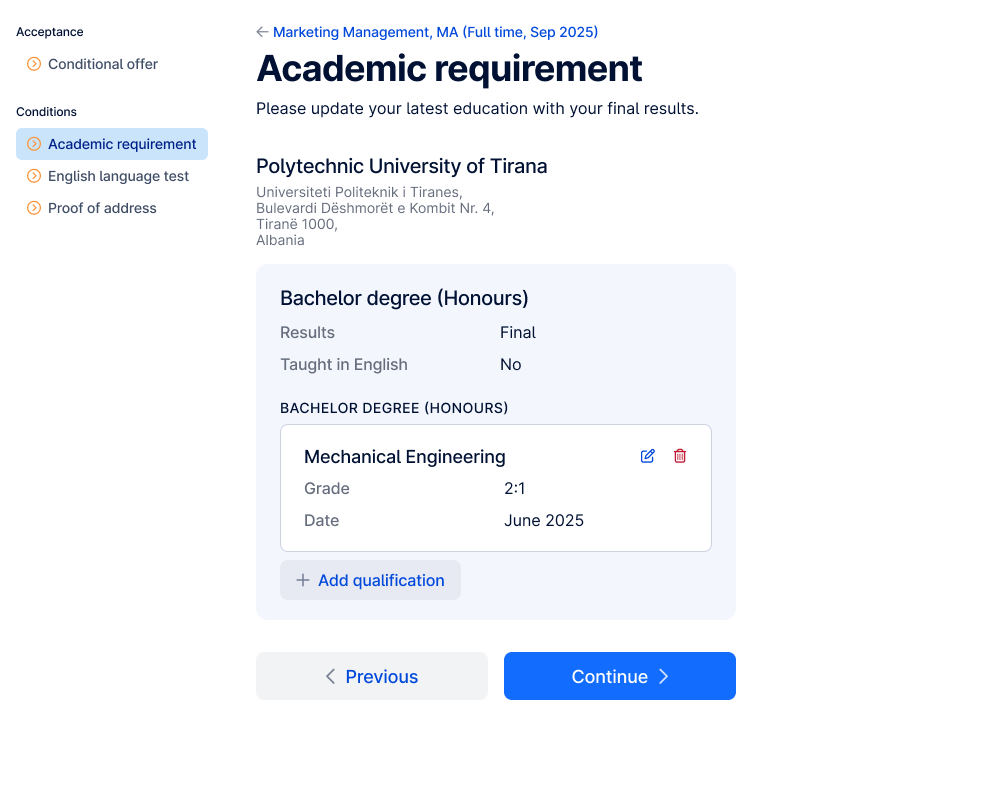
- Academic results — used where the study's results were recorded as Final at application. The applicant confirms or updates their qualification details.
- Final academic results — for providing confirmed results where they were predicted or not yet available at application. The applicant indicates whether final results are now available; if so, they provide grade, award date and awarding organisation per qualification. If not, they can't complete the task yet and see an information message.
Final results are stored separately from the original application data, keeping the two distinct.
English language results
A data-entry task where the applicant records the English test they're using to meet the requirement. The task description carries the configured requirement (e.g. the required overall and per-band scores).
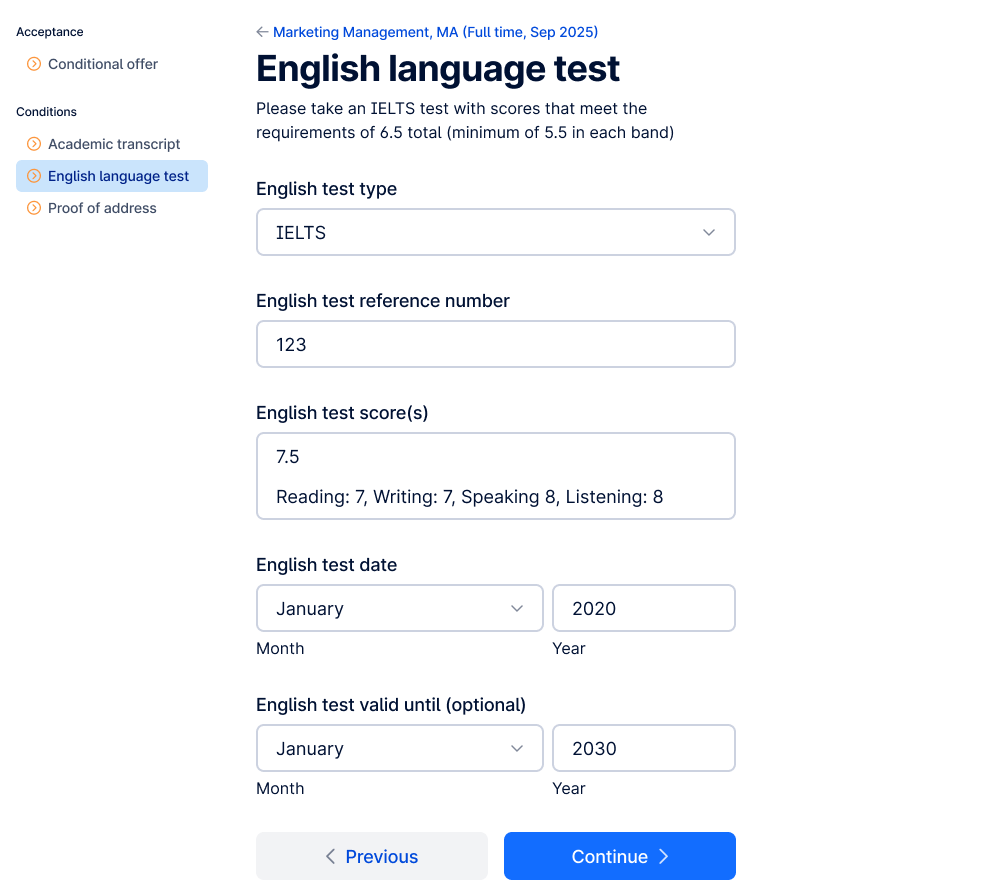
Fields: test type, reference number, scores (overall plus Reading, Writing, Speaking, Listening), test date, and an optional "valid until" date.
This task is for recording a test and its scores. The alternative ways of meeting the requirement (e.g. a majority-English-speaking nationality, or a previous qualification) are handled in the application's English language section, not here.
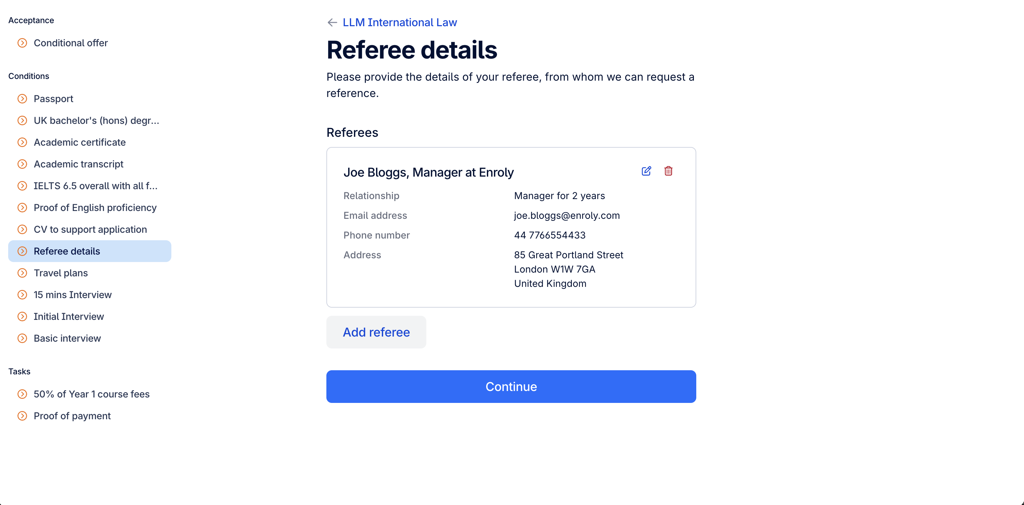
Referee details
A data-entry task mirroring the references step of the application. For each referee the applicant provides: full name, occupation, employer, email, phone, country and address, plus their relationship to the referee and its length. The applicant can add one or more referees.
Recorded interview
A task the applicant completes by recording a video. It appears under its stage (e.g. Conditions) with a Start interview button.
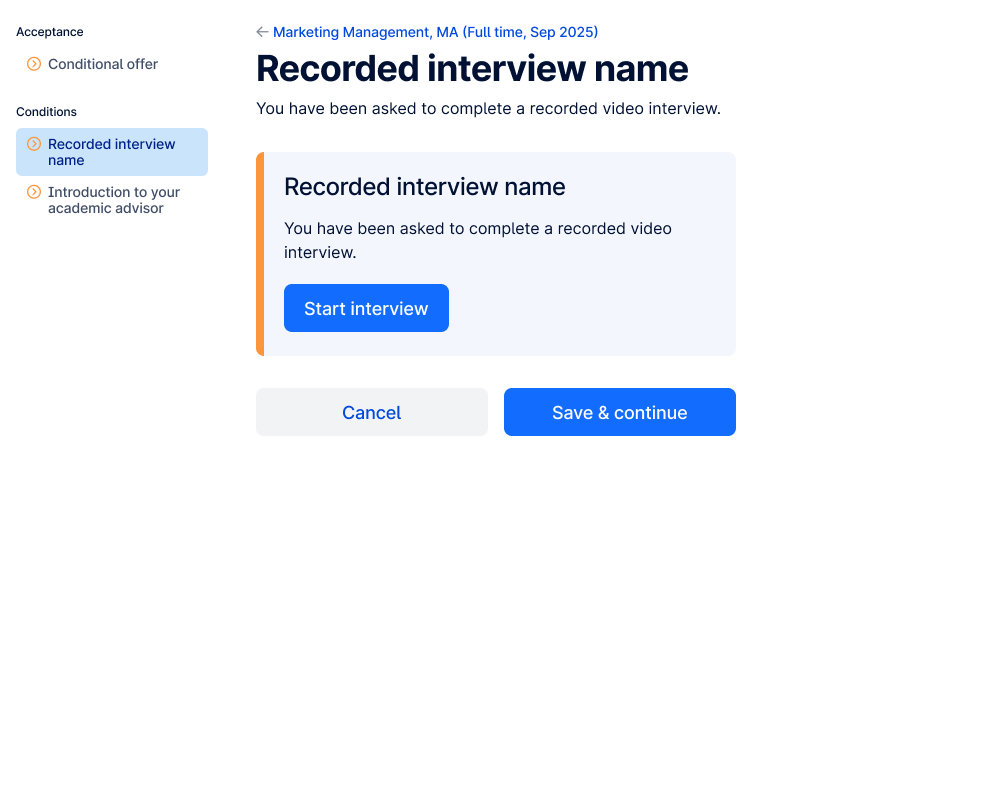
- The recording reveals questions one at a time during the live session; the applicant can't go back to a previous question, the session auto-logs-off if left idle, and only one active session is allowed at a time.
- The applicant has a maximum of two attempts. If a recording fails, an error is shown and a fresh attempt is offered where the allowance remains; once both are exhausted, a new interview is generated and the spent attempts are shown as read-only.
- If the university requires passport verification before recording, the interview is replaced by a prompt until the passport task is done.
Only the applicant can complete a recorded interview. Agents and partners can see the task and its status, but cannot start it, or view, play back or download the recording.
Interview booking
A task the applicant completes by booking a live interview slot through a scheduler embedded directly in the task page (showing the university name, meeting length, a day calendar and a time-zone picker).
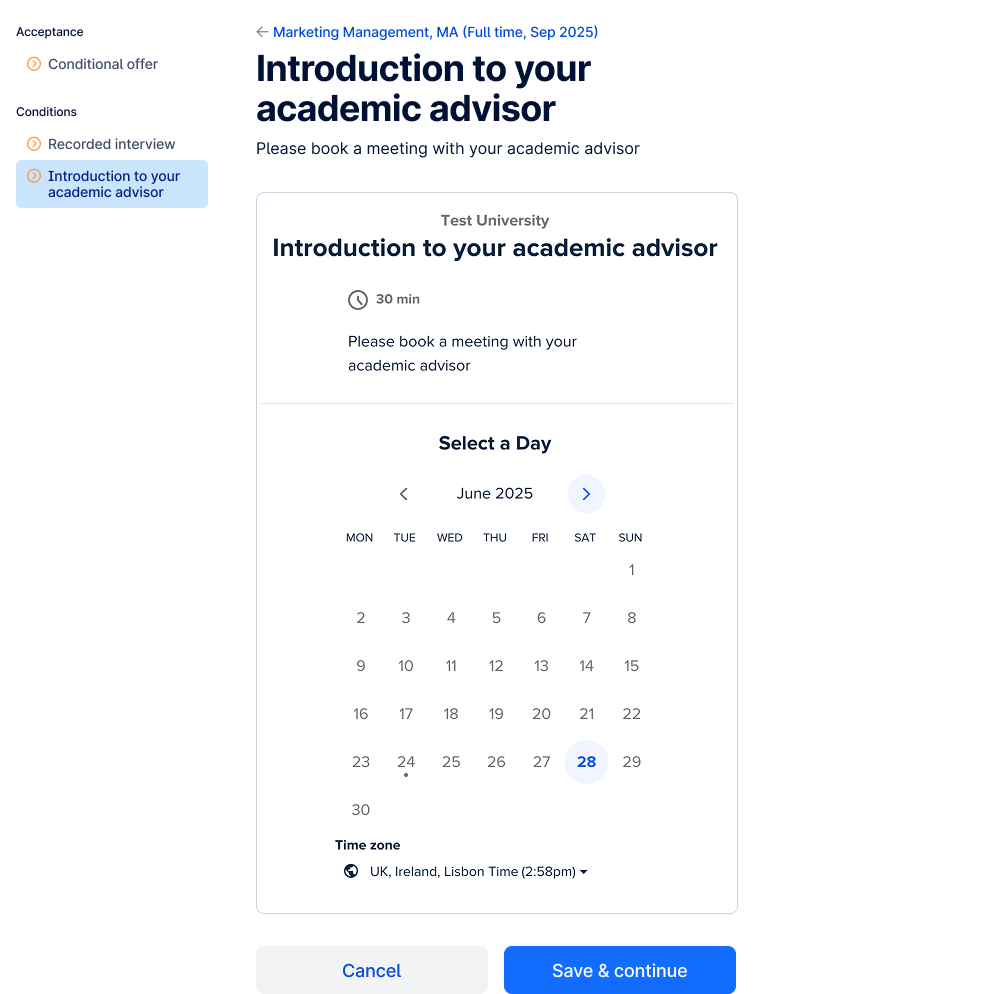
- The task can't be completed until a slot is booked — trying to proceed without booking shows a validation message.
- After booking, the applicant sees a confirmation with who they're meeting, the date, time, time zone and joining details.
- Unlike recorded interviews, an agent can book this on the applicant's behalf.
Payment and proof of payment
These are ordinary requirement tasks (Finance). They can be set at pre-offer, condition or enrolment level (most often condition), and appear within that level's group, pinned to the bottom. The payment declaration and the proof upload are two independent tasks, available at the same time and completable in any order. The options shown depend on the applicant's fee status.
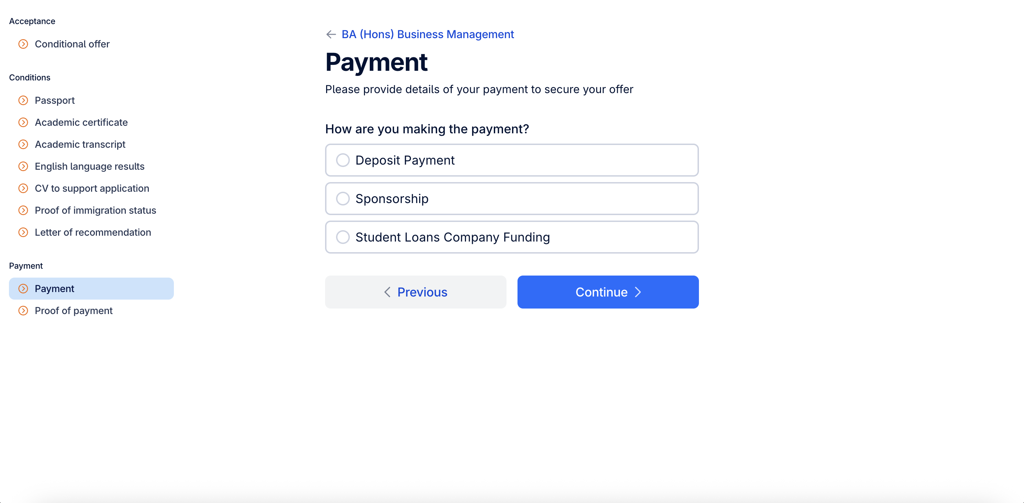
Payment task, the applicant declares their intended method. Where the university has added it, the required deposit is shown in the task text (e.g. "50% of Year 1 course fees"):
- Deposit payment (Home & Overseas) — deposit amount, deposit date.
- Sponsorship (Home & Overseas) — sponsor type, sponsor name (and international presence where relevant).
- Student Loans Company funding (Home only) — Customer Reference Number (CRN) and Student Support Number (SSN).
Proof of payment task, the applicant uploads supporting documentation for their chosen option.
Where finance tasks are satisfied or exempt (or none apply), the programme can reach Completed and transition to CAS Shield; the declared deposit and sponsor details transfer across.
When tasks are requested: the three levels
The same task works identically wherever it sits — what differs is when it's requested and what it does.
Pre-offer tasks
Requested after submission but before any offer, so the university can make an informed decision.
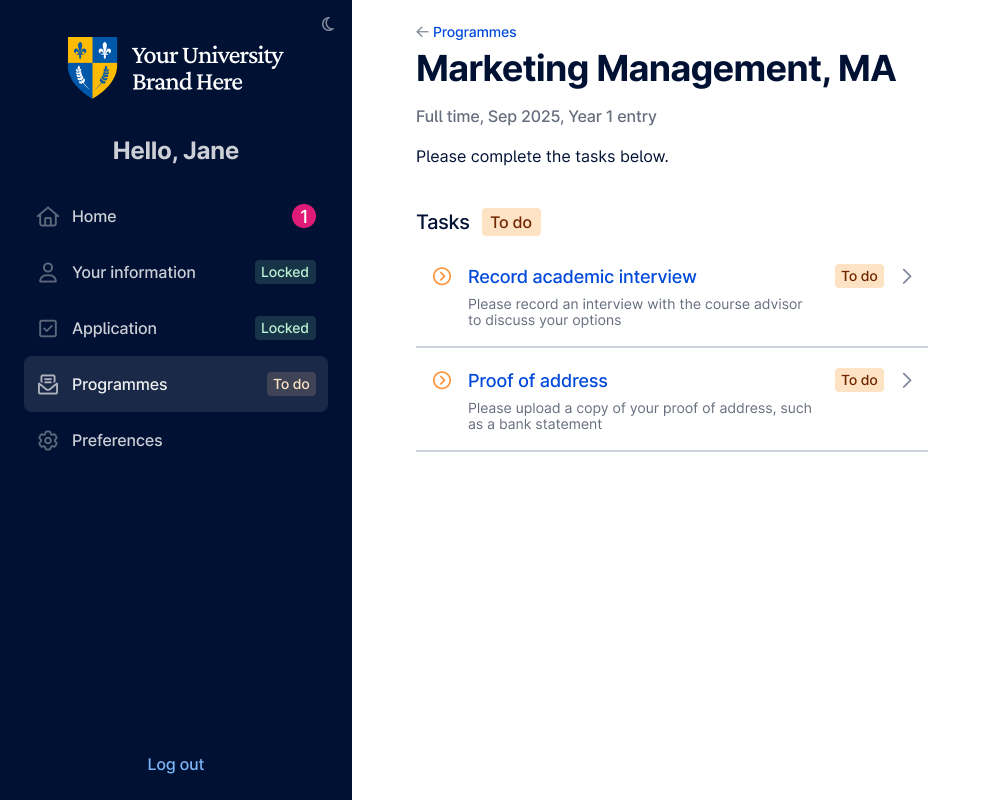
- Appear automatically (if the course is configured for them) or manually.
- Once requested, the programme becomes visible under Programmes, the tasks show under the Tasks group, and the home page flags them.
- The page copy is neutral ("Please complete the tasks below") and there's no Acceptance task at this stage.
- Any pre-offer tasks still outstanding when a conditional offer is issued carry over as conditions.
Condition tasks
Set on a conditional offer, the requirements the applicant must satisfy to convert it into an unconditional offer.
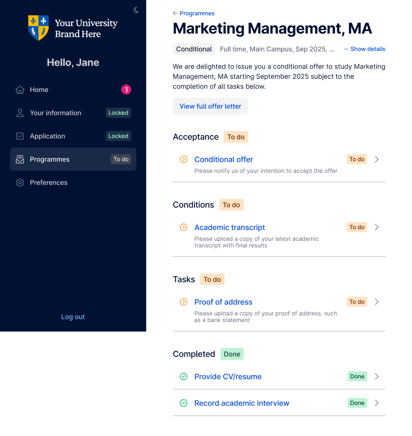
- Shown under the Conditions group when a conditional offer is issued; outstanding pre-offer tasks carry over here.
- Once all conditions are assessed as Satisfied, Exempt or Provisional, the university can issue an unconditional offer, which adds a new acceptance task.
- Where finance is set at condition level, Payment and Proof of payment appear within Conditions.
Enrolment tasks
Requested when the first offer is issued, sitting alongside the offer rather than gating it.
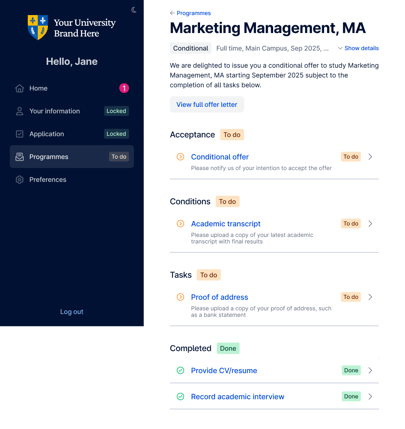
- Shown under the Tasks group; not offer conditions, so they don't block an unconditional offer and can be completed at any time.
- A programme reaches Completed once it's unconditional, accepted, and its finance and enrolment tasks are satisfied or exempt (or none apply).
Offers
Once the university issues an offer, the programme enters the offer stage. An offer is either Conditional or Unconditional.
- Conditional, issued with one or more conditions to satisfy; meeting them lets the university issue an unconditional offer.
- Unconditional, issued when no conditions remain; confirms the place, subject to acceptance and any remaining enrolment or finance steps.
Each offer has an offer letter, viewable on the programme page and downloadable as a PDF.
When an offer is issued, the programme page shows the Acceptance task, any Conditions (which may include payment tasks), and makes enrolment tasks visible under the Tasks group.
How an offer progresses:
- The applicant accepts the offer. Acceptance is final and automatically declines their other offers.
- On a conditional offer, satisfying all conditions lets the university issue an unconditional offer, and a new acceptance task appears.
- The programme reaches Completed once it's unconditional, accepted, and finance tasks are satisfied or exempt (or none apply).
- A rejected or withdrawn offer moves the programme to Closed.
Accepting or declining an offer
There are two independent acceptance tasks: one for a conditional offer, one for an unconditional offer. An applicant can complete both to fully secure their place (accepting the conditional offer, then the unconditional one once conditions are met) but the unconditional acceptance task is independent and becomes available even if the conditional offer was never accepted.
For each, the applicant has two choices, each with a confirmation prompt explaining the consequence:
- Accept the offer, confirm it as their firm choice. Accepting any offer automatically declines all their other existing offers (status set to Withdrawn / Declined). A green thumbs-up shows against the accepted offer.
- Accepting a conditional offer still requires the applicant to satisfy the conditions.
- The automatic decline only applies to offers that existed at the time of acceptance, if the university issues a new offer afterwards, it stays active.
- Decline the offer affects only that offer (set to Withdrawn / Declined, red thumbs-down shown). All other offers remain unaffected.Rejection and withdrawal
These are terminal statuses that end the active journey for that application or offer.
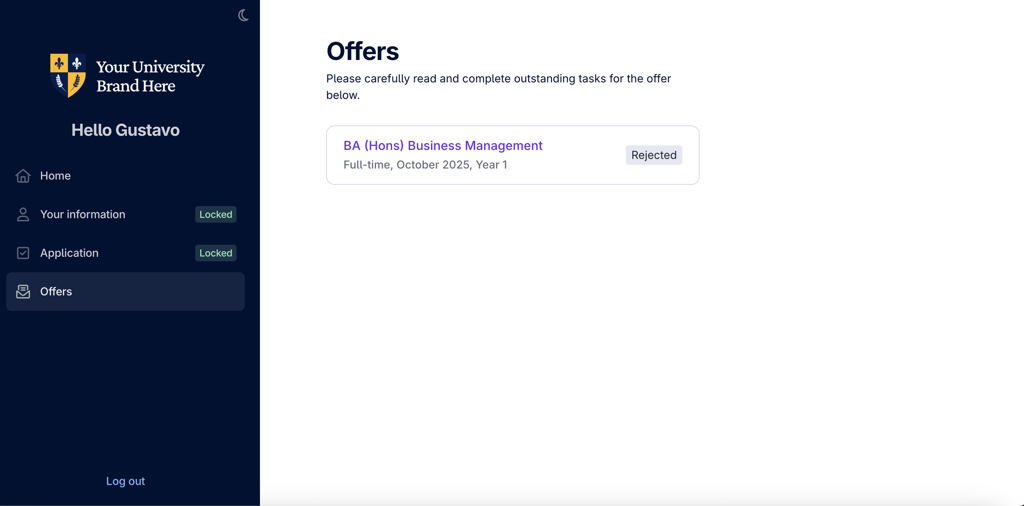
Rejected application, the university has decided not to make an offer.
- The applicant may receive an email (if the university chooses to send one), and a home-page entry notifies them.
- An entry appears in the Programmes section with a Rejected status, and a dedicated page shows the programme details, the Rejected status and the reason. No tasks are displayed.
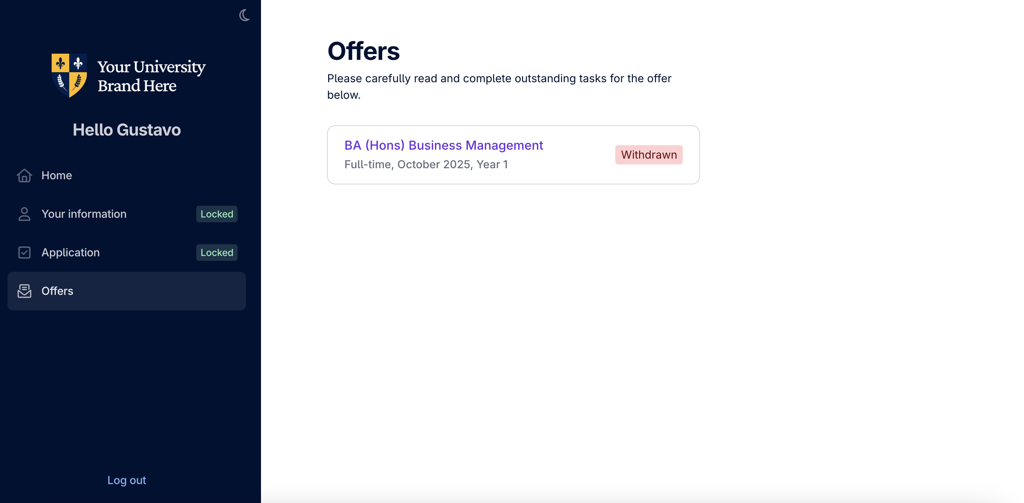
Withdrawn offer — the university has rescinded a previously issued offer.
- The applicant may receive an email (if the university chooses to send one). A home-page entry appears if it was their only offer; if they hold multiple offers, the home page prioritises active ones.
- The offer entry updates to Withdrawn, and its page shows the Withdrawn status and reason. All tasks are removed from view, including completed ones.
Withdrawing or rejecting one offer doesn't affect any other offers the applicant holds. If it was their only offer, this marks the end of their journey.