
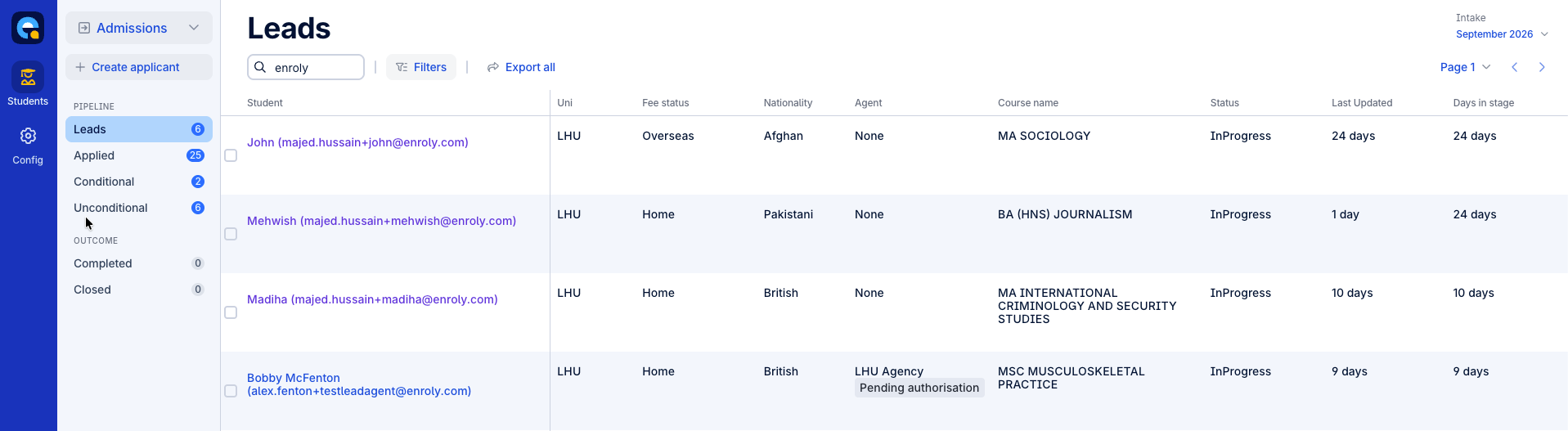
This article explains the Admissions Workflow in Apply. The spreadsheet-style view where your team manages applications. It follows a familiar format similar to CAS Shield, so the experience is consistent across both. Understanding it will help your admissions team work through applications efficiently.
Selecting the workflow
- When enabled, an Admissions workflow appears in the workflow dropdown, alongside the existing CAS Process workflow.
- Selecting Admissions lets your team manage applications through a structured series of stages.
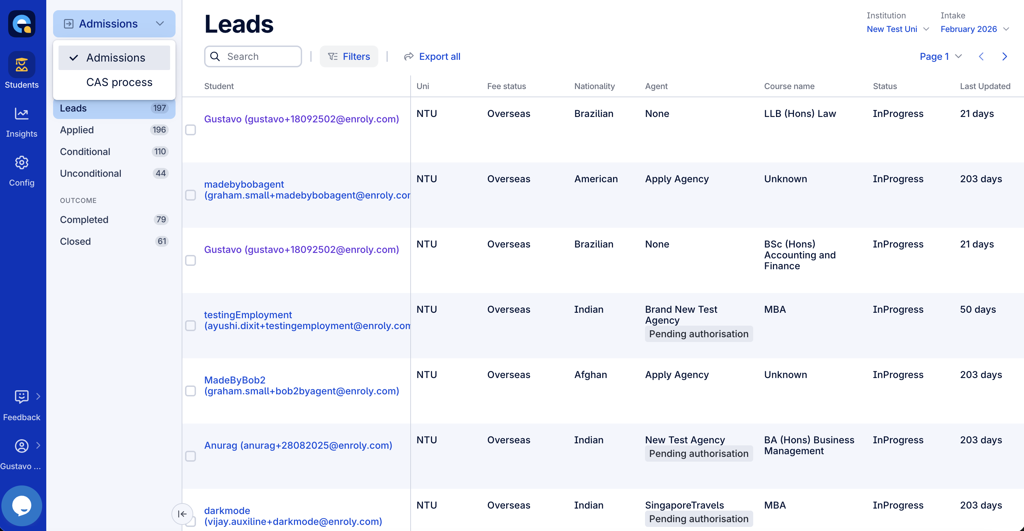
The Admissions spreadsheet includes:
- Stage labels — the current stage of each application.
- Search bar — to quickly locate specific applications.
- Filters — to narrow applications by relevant criteria.
- Institution dropdown — visible to Administrator users, for selecting between institutions.
- Intake dropdown — shows all intakes set up for the institution.
- Pagination — 50 records per page, as in CAS Shield.
Managing admissions in its own workflow keeps it separate from the CAS process, while the familiar spreadsheet format means there's little new to learn.
Admissions workflow: StagesThe workflow organises applications into clearly defined stages, giving a structured and transparent view of your admissions pipeline. Programmes are placed into the relevant stage automatically based on their status, and each stage shows a count of the programmes within it.
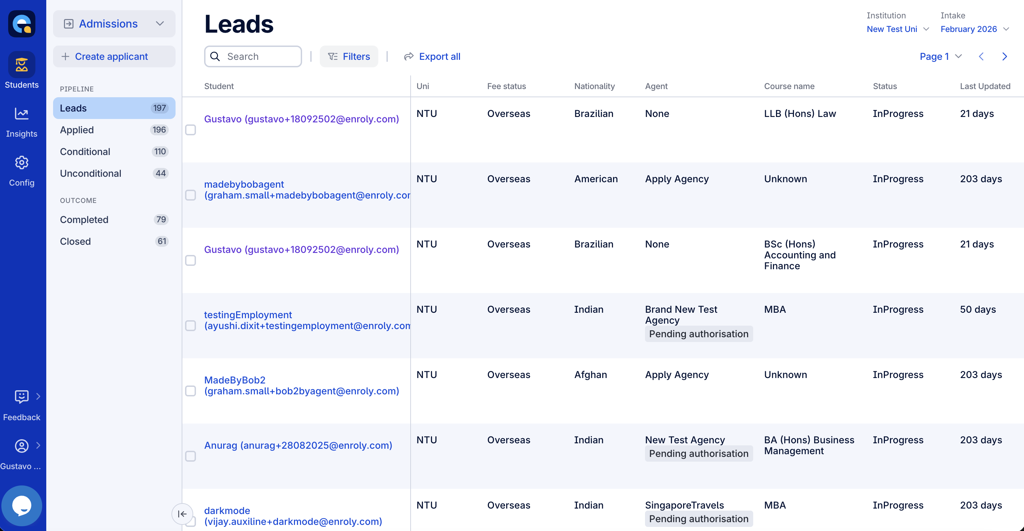
Pipeline stages
These represent applications progressing through the earlier part of the process.
|
Stage |
What it shows |
Default sort |
|
Leads |
Registered leads who have completed the "Your Information" section and verified their email, but have either not started an application or started but not submitted one |
Newest account first |
|
Applied |
All offers with the status Applied |
Oldest application first |
|
Conditional |
All offers with the status Conditional |
Most conditions to assess first |
|
Unconditional |
All offers that have met their conditions but aren't yet finalised |
— |
The Leads stage helps you track potential applicants who've shown interest but not yet completed an application.
Outcome stages
Once an application reaches a final decision, it moves into an outcome stage.
|
Stage |
What it shows |
|
Completed |
Offers that are Unconditional, with all requirement tasks (including finance) Satisfied or Exempt, and the applicant's response Accepted |
|
Closed |
Offers that have been declined, withdrawn or rejected |
Automatic categorisation and sensible sorting mean the most relevant applications surface first, helping your team prioritise their work.
Admissions workflow: Table contentsThe spreadsheet displays key data for each programme, so your team can quickly identify offers that need action.
- Each row represents an individual programme.
- Clicking a row opens the Applicant File for that programme.
- The Intake dropdown (top-right) shows all intakes for the institution — the workflow is intake-specific, so only offers for the selected intake are shown.
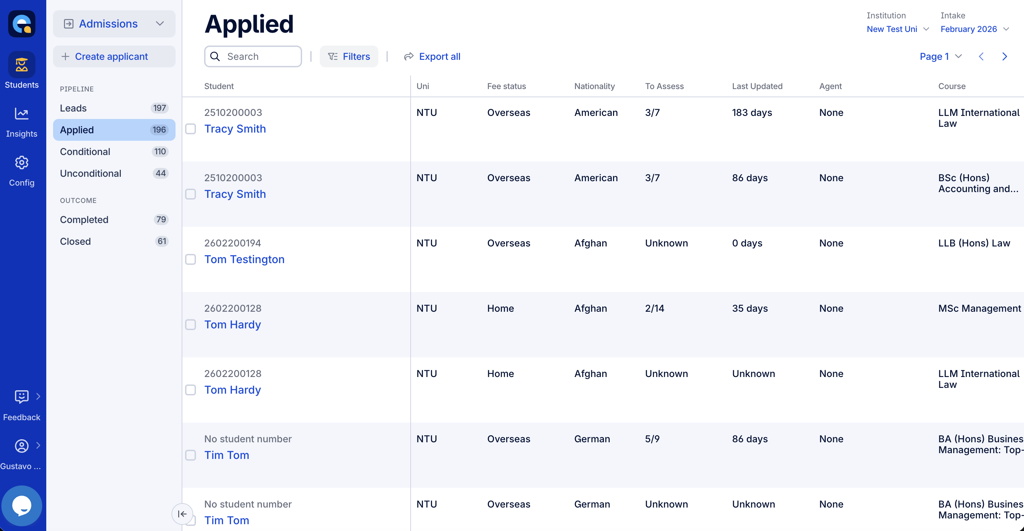
The columns
|
Column |
What it shows |
|
Student |
A bundle of key applicant details (see below) |
|
Uni |
University short code |
|
Fee Status |
Home or Overseas |
|
To Assess |
Requirements ready to assess, shown as X/Y (X = ready to assess now; Y = total assess + condition) |
|
Last Updated |
Days since the applicant's last update |
|
Nationality |
The applicant's nationality |
|
Agent |
The agent name if assigned, otherwise None |
|
Course |
The course title in the offer |
|
Mode |
Study mode (e.g. Full-time) |
|
Entry Year |
Course entry year |
|
Status |
Offer status (Applied, Conditional, Unconditional, etc.) |
|
Applied Date |
Date the application was submitted |
|
Offer Issued |
Date the latest offer was issued |
The Student column
This column bundles several useful details together:
- Student number
- Given name and family name
- Indicators showing: new documents uploaded since the last assessment; an offer edited since it was issued (but not yet re-issued); or an unlinked email (no email associated with the application)
- Tags applied
- The applicant's response (accepted or declined)
Sorting
- Click a column header to sort by it, one click for ascending, two clicks for descending.
Essential details are visible at a glance, and clicking any row opens the full Applicant File instantly.
Admissions workflow: SearchThe search bar at the top of the spreadsheet lets you quickly locate applicants. It works the same way as in CAS Shield.
- Partial match: search by part of a name, course or other visible data point e.g. typing "live" returns "Clive".
- Comma-separated search: enter multiple terms separated by commas to match any of them e.g. "Clive, Ryan" returns applicants matching either name.
You can search on any data point visible in the table, which makes locating applicants fast even across large volumes.
Admissions workflow: FiltersFilters let you narrow the spreadsheet to the offers that matter most. The design matches CAS Shield.
How it works
- The Filters button opens the filters panel.
- The panel groups all available filters by category.
- Applying a filter adds a badge at the top of the page; hover over it to see the selected values.
- Remove filters via the X on a badge, or Clear all filters in the panel.
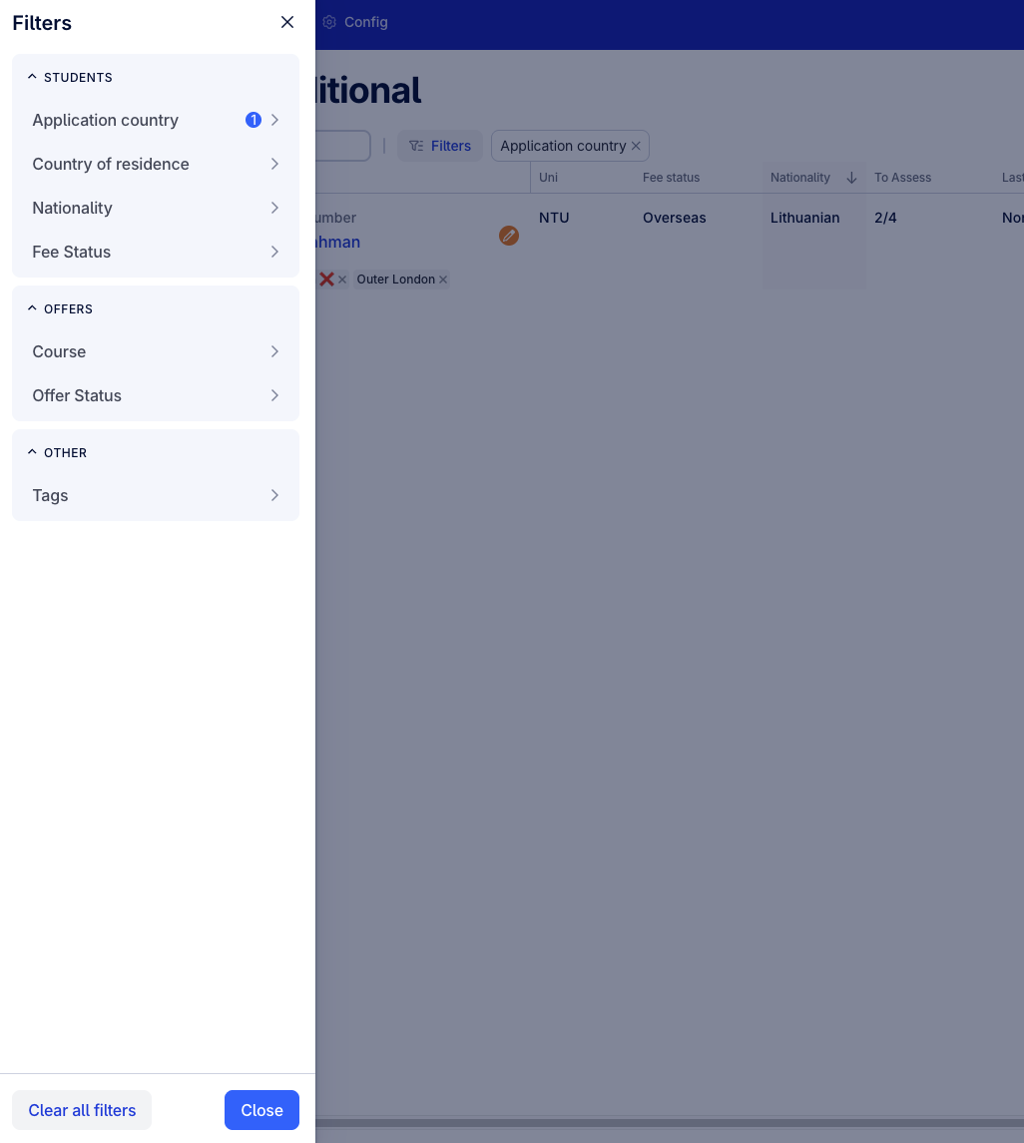
Available filters
|
Category |
Filter |
Type |
|
Students |
Fee status |
Multi-select (Home / Overseas / Not sure) |
|
Students |
Nationality |
Searchable multi-select |
|
Students |
Country of residence |
Searchable multi-select |
|
Students |
Application country |
Searchable multi-select |
|
Offers |
Status |
Multi-select (Not submitted, Applied, Conditional, Unconditional, Rejected, Withdrawn) |
|
Offers |
Course |
Searchable multi-select |
|
Other |
Tags |
Searchable multi-select — match any selected tag, or match all |
You can apply several filters at once to pinpoint exactly the offers you need, in an interface that mirrors CAS Shield.
CSV exportThe CSV export lets you download applicant and lead data from Apply in a simple, usable format. It's designed as a lightweight, practical tool for quick operational needs — sharing lists, basic analysis, or preparing data for external use.
What it is and isn't:
- It's not a full data export. It doesn't include every data point in Apply, and isn't a replacement for your Student Management System integration continue to rely on that integration to bring the data you need into your own systems.
- It's not a reporting feature. For structured reporting, use your Student Management System or reporting tools. (Reporting capability is on the Apply roadmap.)
- It provides a quick snapshot of key data, not a complete dataset.
How it works
- The Export all button appears above the spreadsheet.
- It exports all applicants and leads for the selected intake.
- If filters are applied, only the filtered (visible) records are exported.
- Exporting individual or selected rows isn't supported.
- The file downloads as a CSV (.csv), compatible with Excel and other spreadsheet tools, with formatting applied for usability (dates, numbers).
What's included
The export contains the key applicant and lead fields, including:
- Identifiers: student number, applicant ID, application ID, offer ID, intake
- Status: application status, offer type, applicant response, pending changes, closed reason
- Applicant details: name, email, phone, fee status, nationality, birth country, application country, country of residence, date of birth, gender
- Agent: agent name and representation/authorisation status
- Course: study level, course name, study mode, entry year
- Dates: applied date, offer issued date, last updated, stage change date
- Assessment: requirements in assessment, requirements with conditions, new documents
- Other: UCAS ID, total scholarships applied, highest qualification on entry, tags, associated partners
Some fields are populated only for offers, not leads (for example, student number and offer dates aren't generated for leads yet).