
This article explains the Admissions Workflow as agents see it — the spreadsheet view agents use to manage applications on behalf of their students. It mirrors the familiar university-staff spreadsheet, with a few adjustments tailored to the agent experience. Understanding it will help your team know what agents can see and do when working with your applicants.
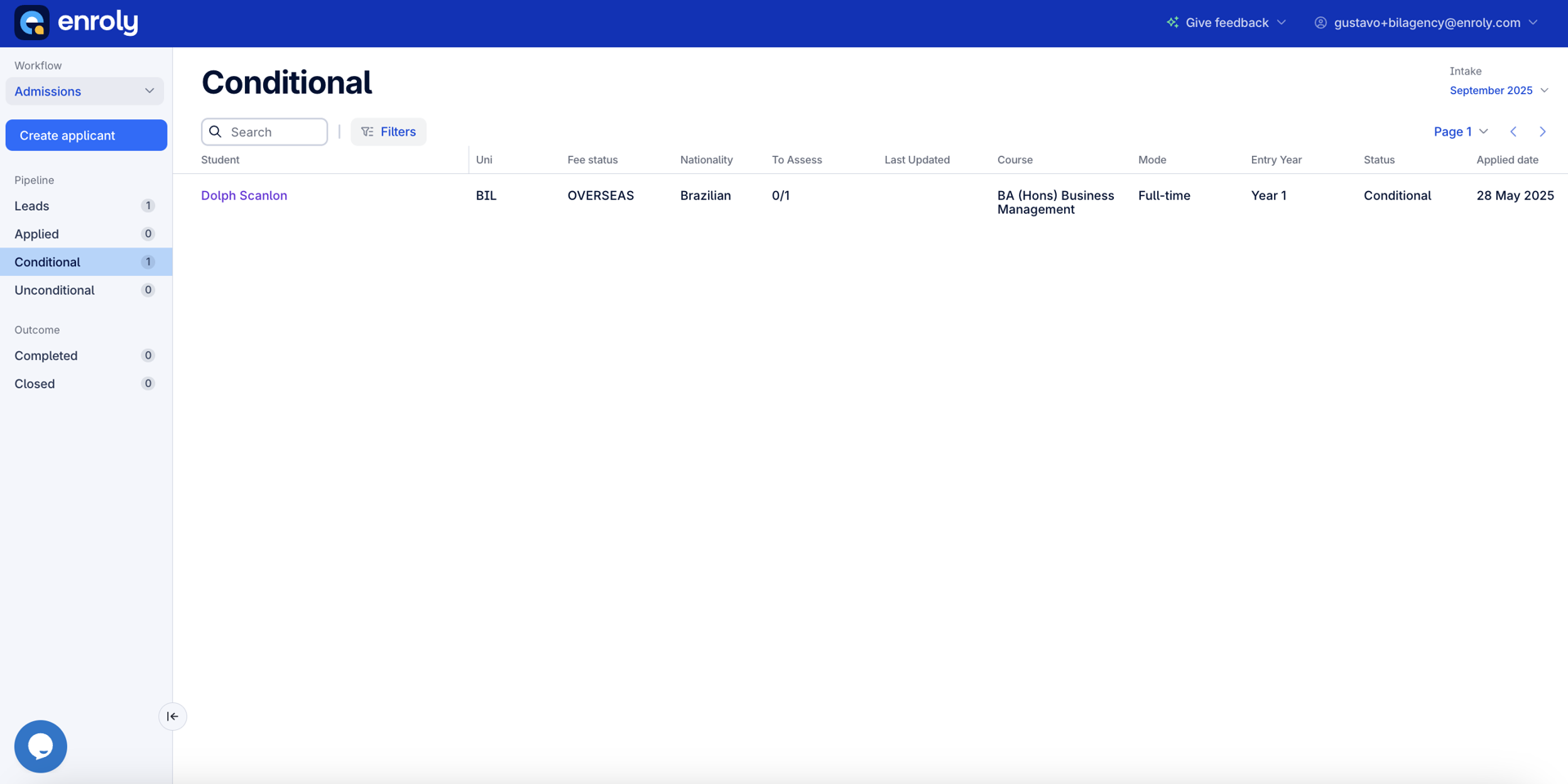
Agents can also create applicants directly from the spreadsheet view — this is covered in a separate article.
How the agent view differs from the University view
The agent spreadsheet is based on the university portal, with these differences:
- Slightly different table columns — optimised for the agent workflow.
- Simplified filters — some statuses are combined for simplicity.
- No institution dropdown — agents don't see the institution switcher, keeping the experience consistent with CAS Shield (agents only ever work within the institutions they're mapped to).
Workflow stages
The agent spreadsheet organises applications across six stages, so agents can track progress:
|
Stage |
Includes |
|
Leads |
Students who have registered and verified their email but not yet submitted an application |
|
Applied |
Applications with an Applied status |
|
Conditional Offers |
Applications assessed and given a conditional offer |
|
Unconditional Offers |
Applications that have met all conditions |
|
Completed |
Fully finalised applications (unconditional, finance approved and accepted) |
|
Closed |
Applications that have been withdrawn, rejected or otherwise concluded |
Default sorting matches the University view — for example, oldest application first, newest leads first, depending on the stage.
What the table shows
The columns shown adjust slightly by stage:
- Leads: Student, Uni, Fee status, Nationality, Course, Status
- All other stages: Student, Uni, Fee status, Nationality, Course, Mode, Status, Applied date, Offer issued, Response, Days in stage
Clicking a row opens the applicant file for that student.
Search
The agent spreadsheet includes a search bar at the top, behaving the same as the University view and CAS Shield:
- Partial match — e.g. searching "odesta" returns "Modesta".
- Comma-separated search — e.g. "Modesta, Ryan" returns results matching either name.
Agents can quickly find applicants using any data point visible in the table.
Filters
The Filters panel lets agents refine the spreadsheet view, using the same CAS Shield-style interface as the University view.
Available filters:
|
Category |
Filter |
Options |
|
Students |
Fee status |
Home, Overseas, Not sure |
|
Students |
Nationality |
All nationalities |
|
Students |
Country of residence |
All countries |
|
Students |
Application country |
All countries |
|
Offers |
Status |
Not submitted, Applied, Conditional, Unconditional, Rejected, Withdrawn |
|
Offers |
Course |
All configured courses |
- Filters are multi-select and show active badges.
- Agents can clear individual filters or reset all of them.
Summary
The agent spreadsheet gives agents a focused, streamlined view for managing their students' admissions journey — with simplified stages, familiar filters and fast search — keeping them organised and responsive throughout.