
This article explains the Unlink Email Address action, which lets your team revoke an applicant's access to their application. Once an email is unlinked, the applicant can no longer log in, and the email address is freed up so it can be used to register a new application.
This is useful when, for example, an applicant has completed the wrong form and needs to start again. It also supports cases where access needs to be removed — such as a withdrawn application, or for compliance reasons.
Accessing the option
- The action is available from the More Actions menu on the applicant's file.
- It's available to most staff roles, but hidden from View Only users.
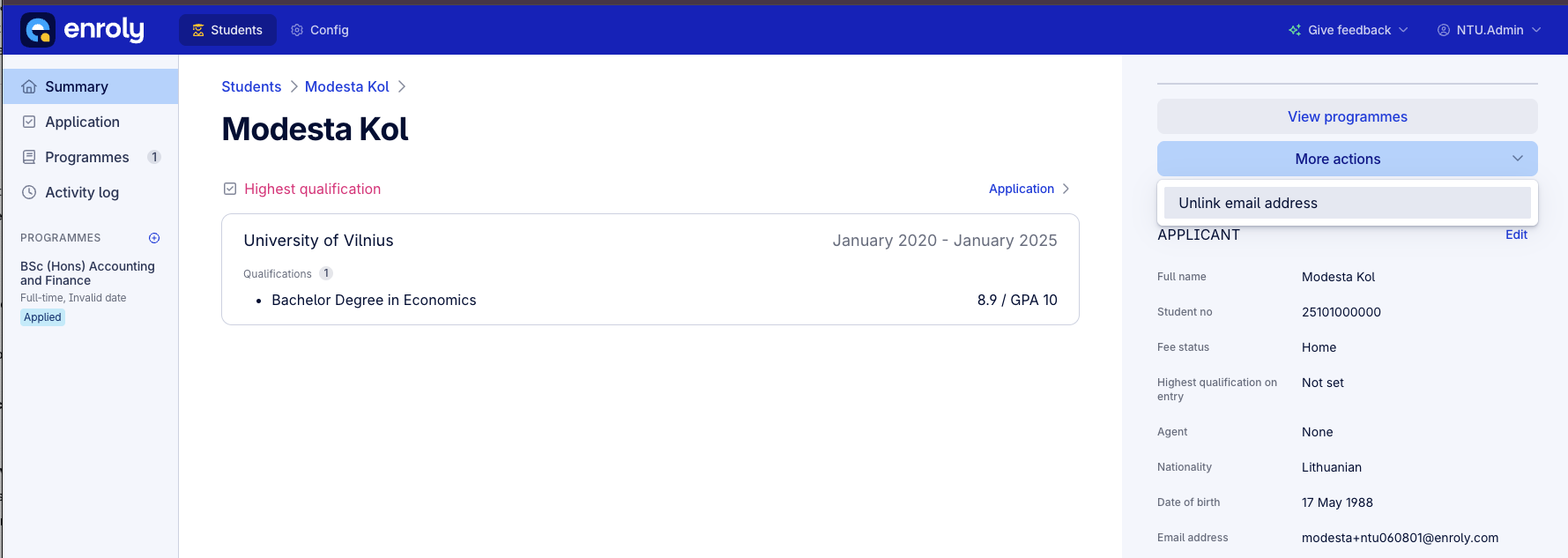
Unlinking an email address
- Select Unlink Email Address from the More Actions menu.
- A confirmation message appears — confirm to proceed.
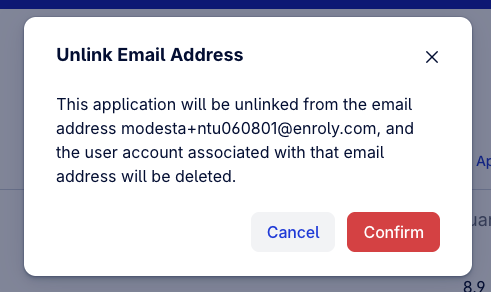
Once confirmed:
- The applicant's email address is removed from the application.
- The applicant's access is immediately revoked.
- The email becomes available for use on a new application.
What you'll see after unlinking
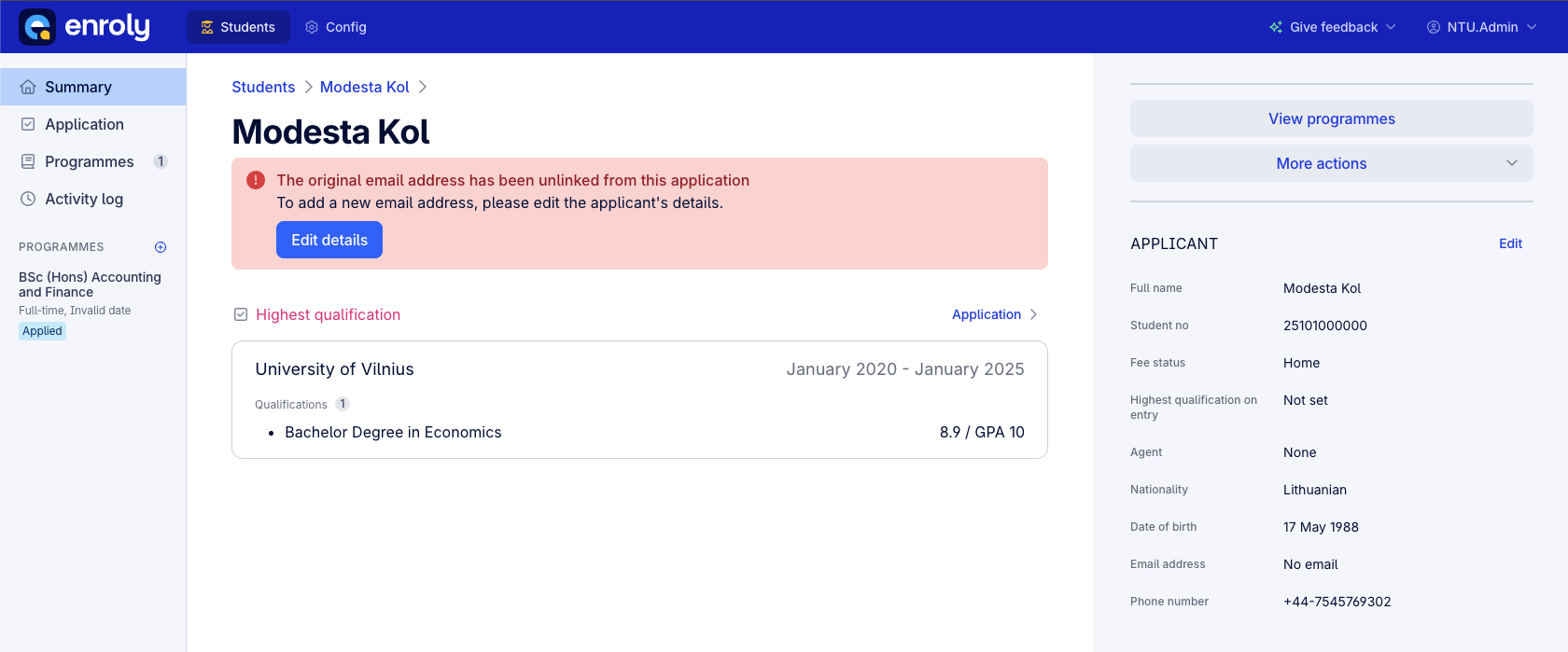
- A banner appears at the top of the Summary page, showing that access has been revoked.
- The Applicant Details panel updates to show no email is currently linked.
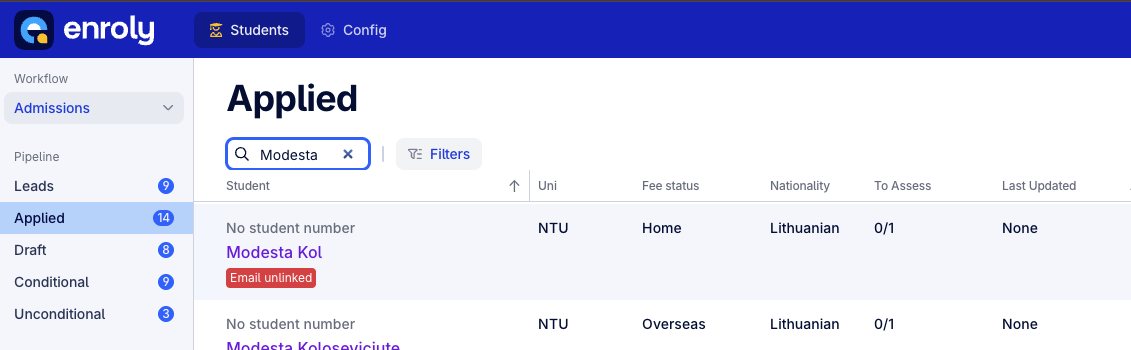
- In the Spreadsheet View, a badge appears against the record, marking that the application has no linked email.
Activity log
Every time an email address is unlinked, the Activity Log records the timestamp, the staff member and their role, and the email address that was unlinked — for example: "Email address [applicant email] unlinked."
Why use it
- Lets your team quickly revoke access when an applicant needs to restart their application.
- Supports compliance and data security by removing access when required.
- Frees up email addresses so they can be reused without manual intervention.
- Maintains a clear audit trail through the Activity Log.